Filter Studio for iPhone & iPad · Core Image & SwiftData
Showcase & Screens

Explore Filter Studio across iPhone & iPad.

Overview

Complete Onboarding Tour

20 thoughtfully designed steps guiding you through capture, filtering, watermarking, and library management.

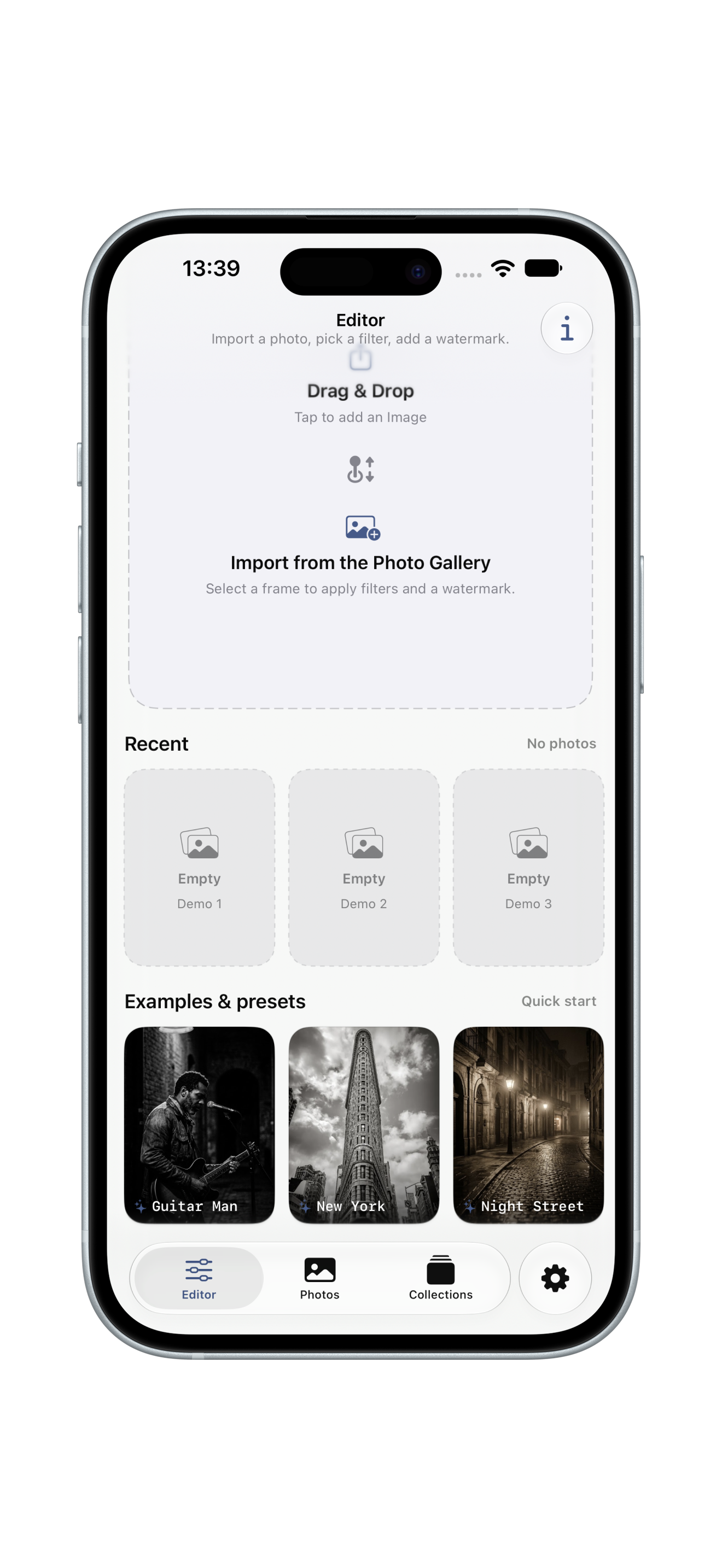
STEP 01 Start in Seconds

Drop a photo onto the canvas, or try a preset first — no access to your library needed.

STEP 02 Your Photos, Your Choice

Pick a frame from your library. FilterStudio only asks for what it needs.

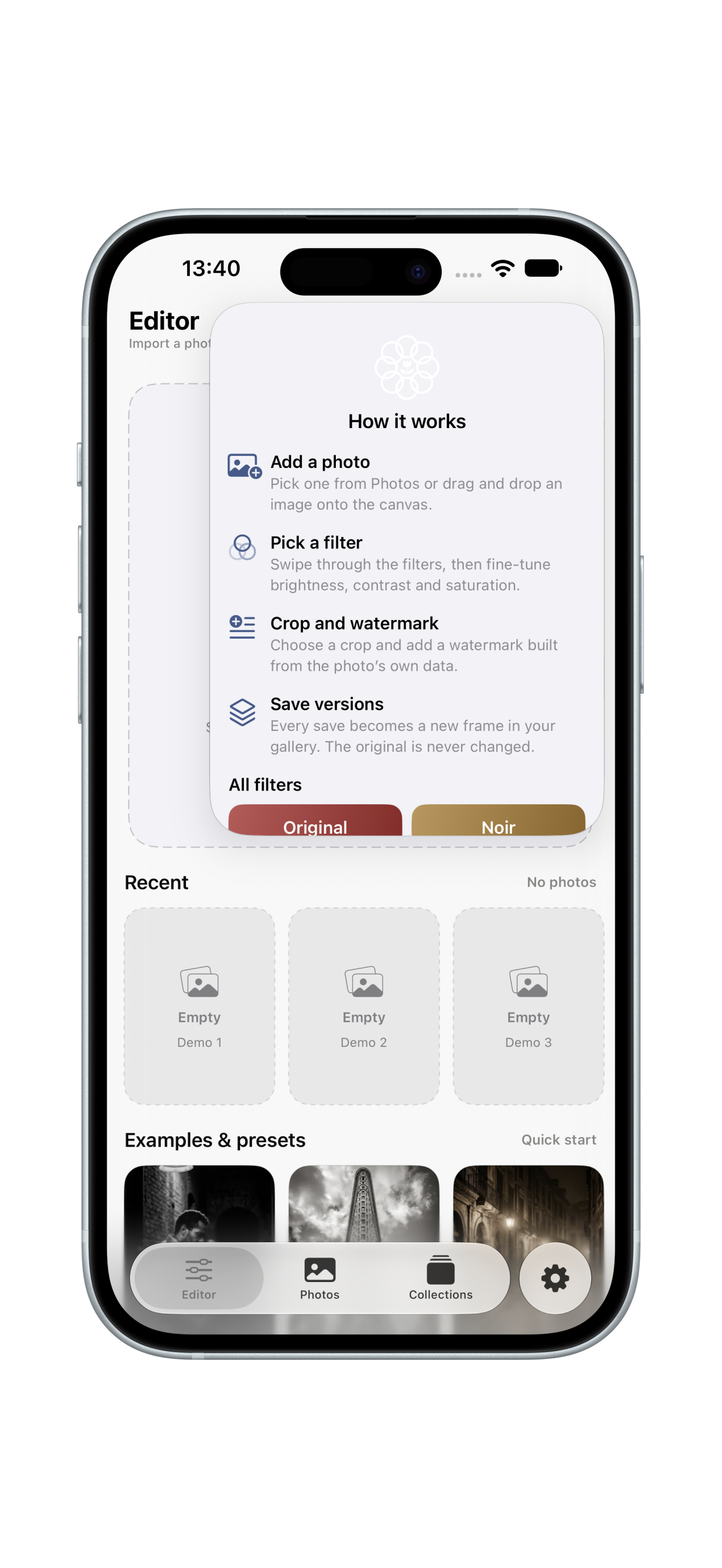
STEP 03 A Guide in One Tap

The ⓘ button shows the steps: import, filter, crop, watermark, save.

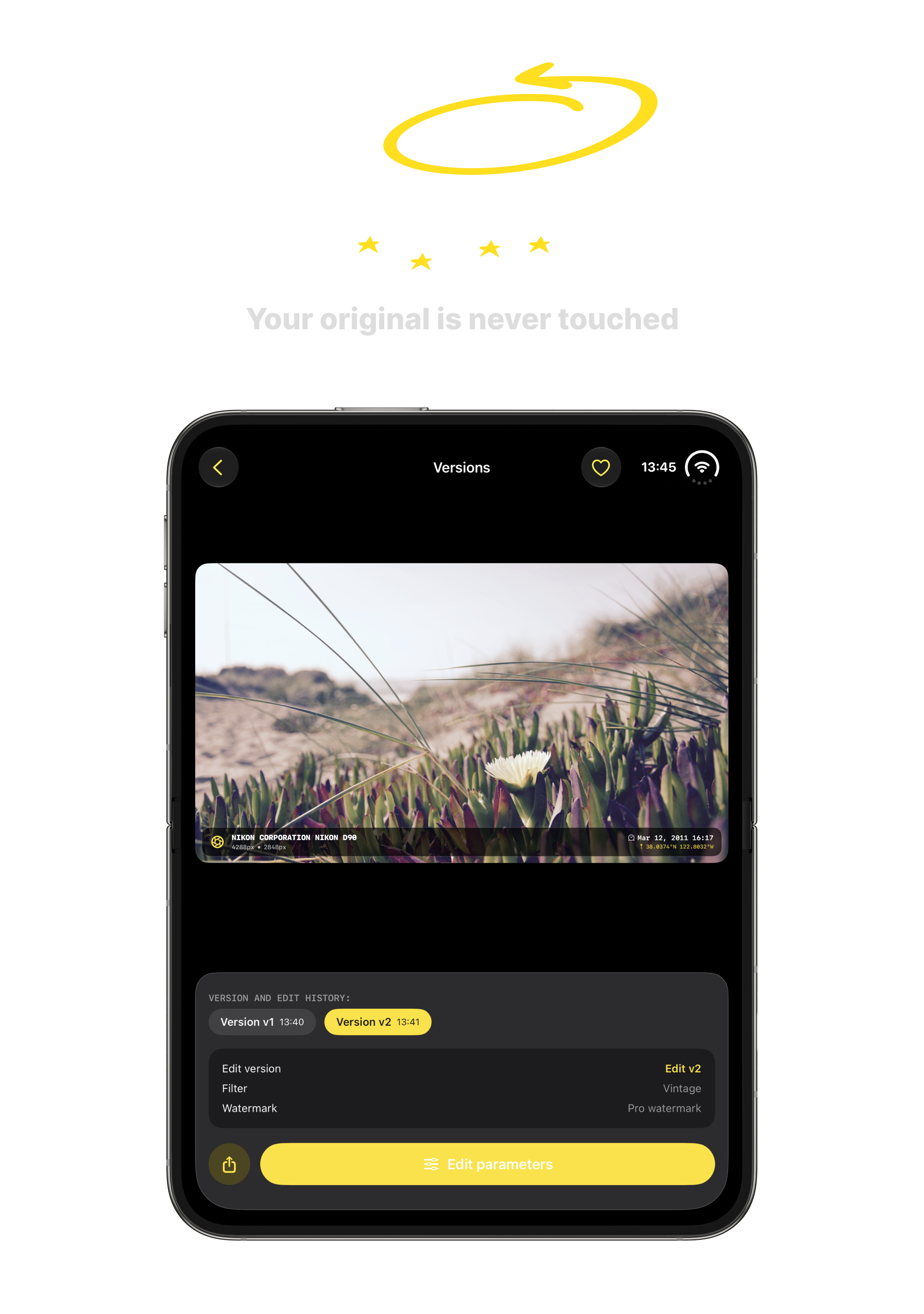
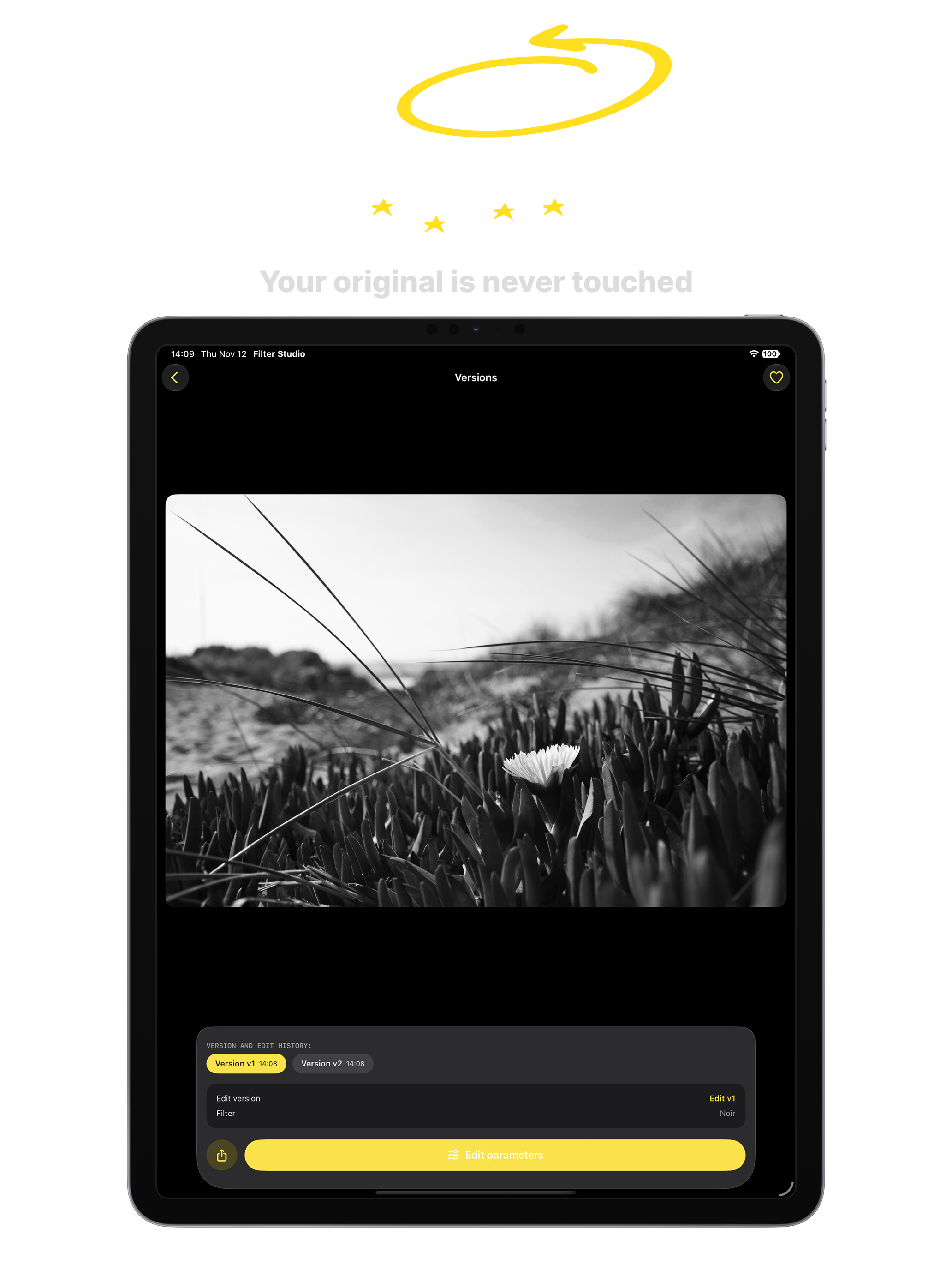
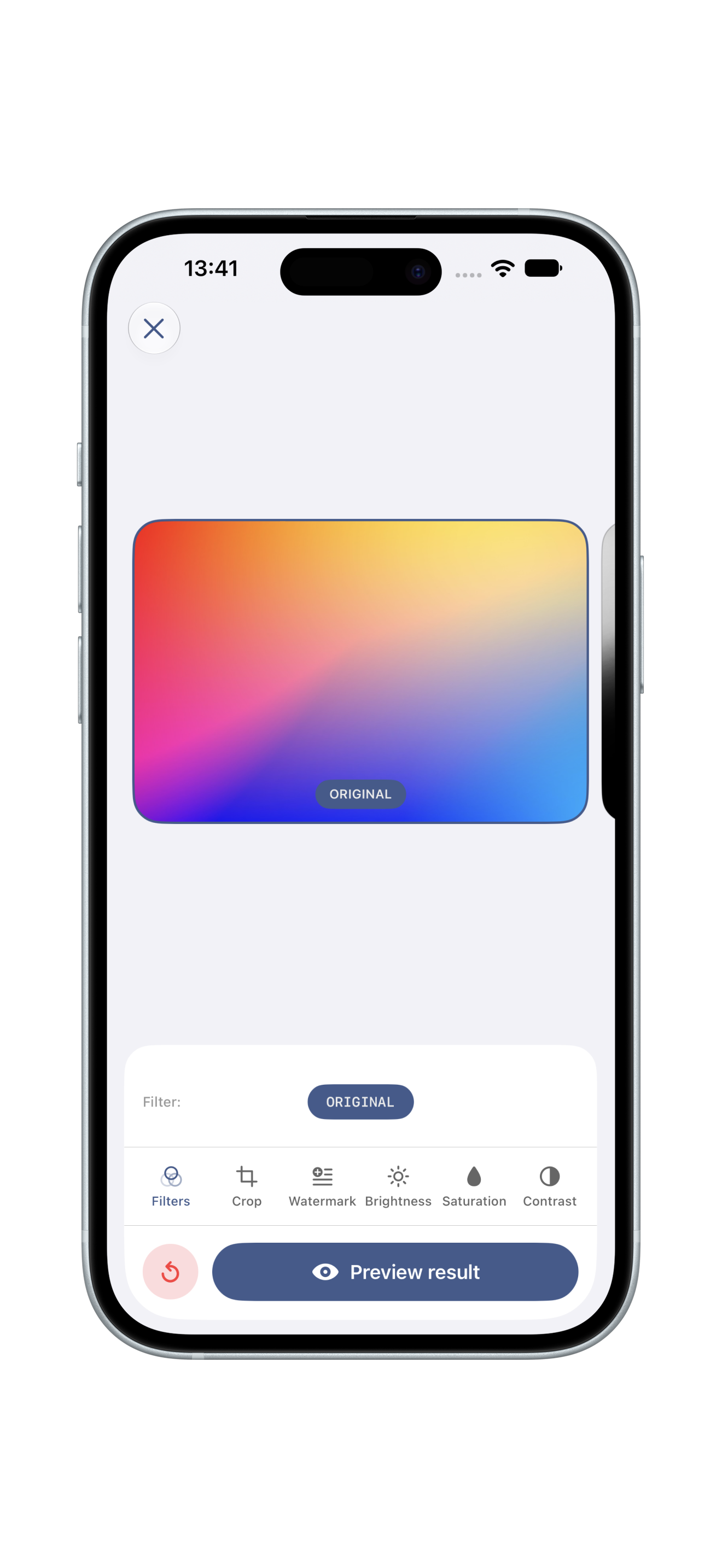
STEP 04 Start From Original

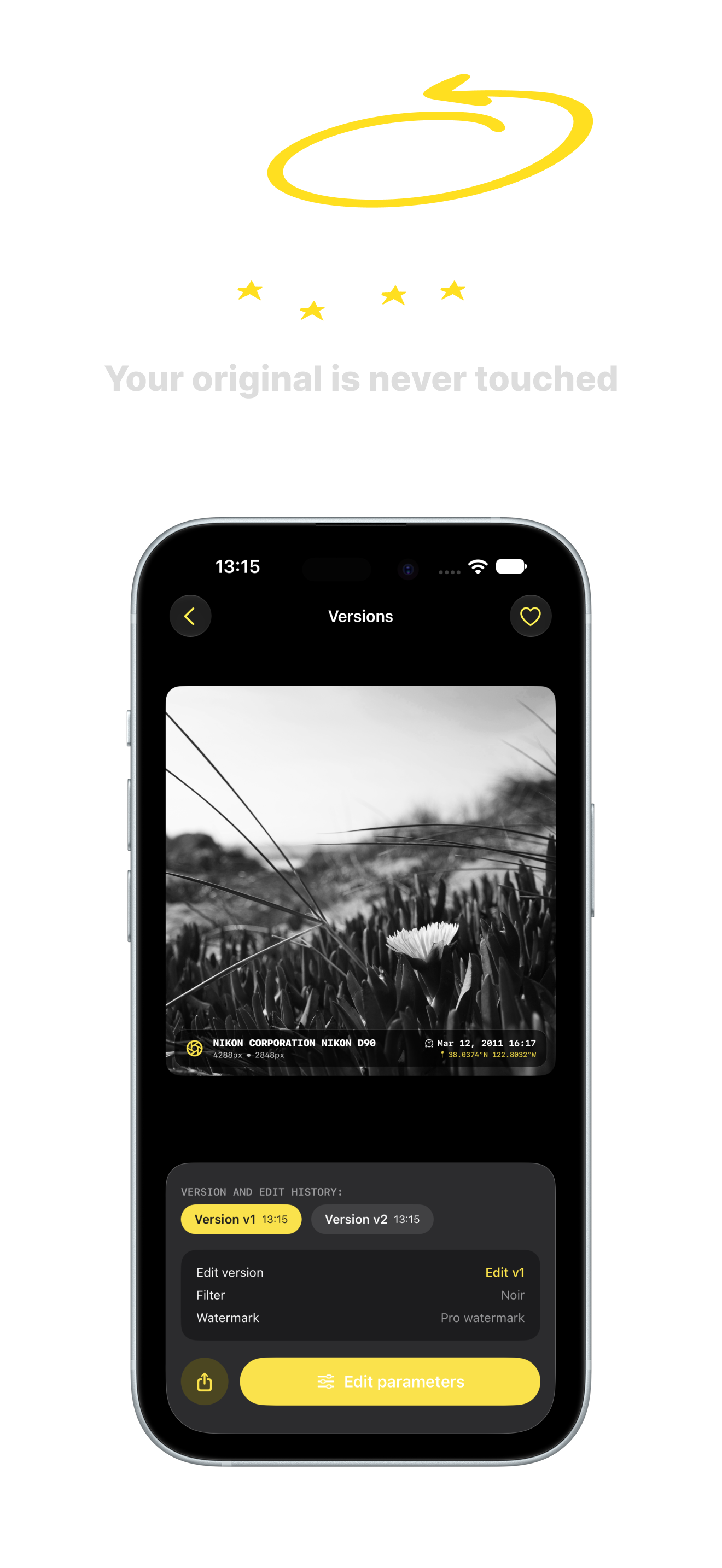
Your photo is never changed. Every edit becomes a new version.

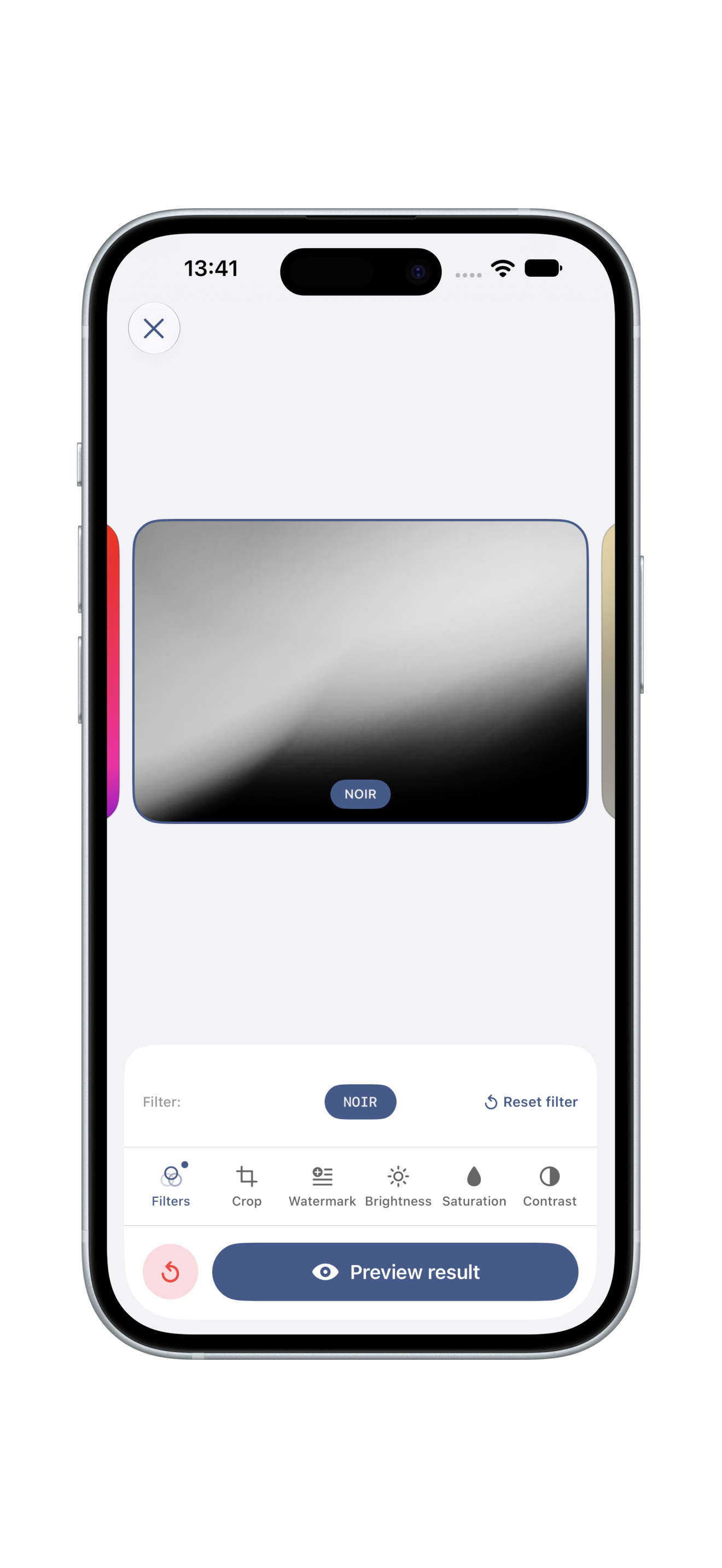
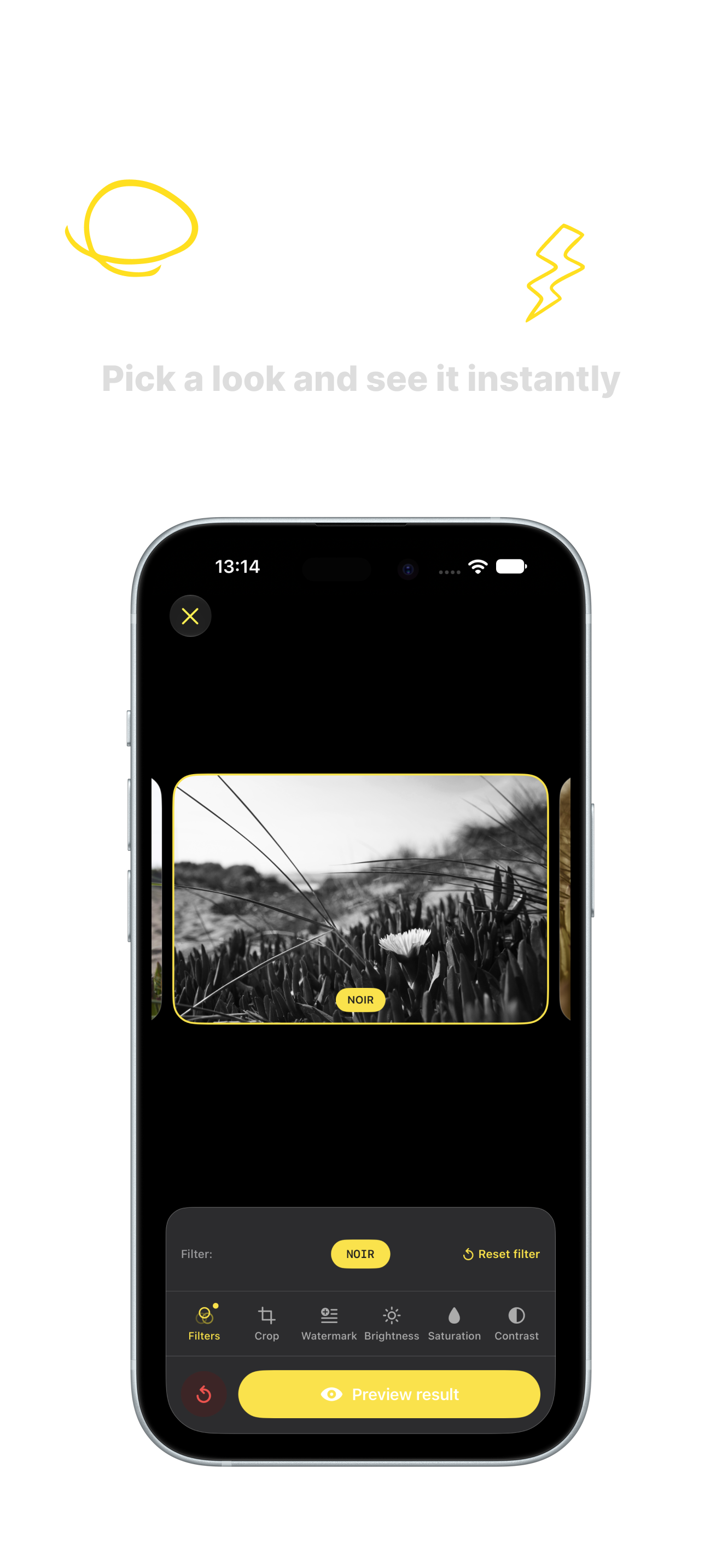
STEP 05 Swipe Through Filters

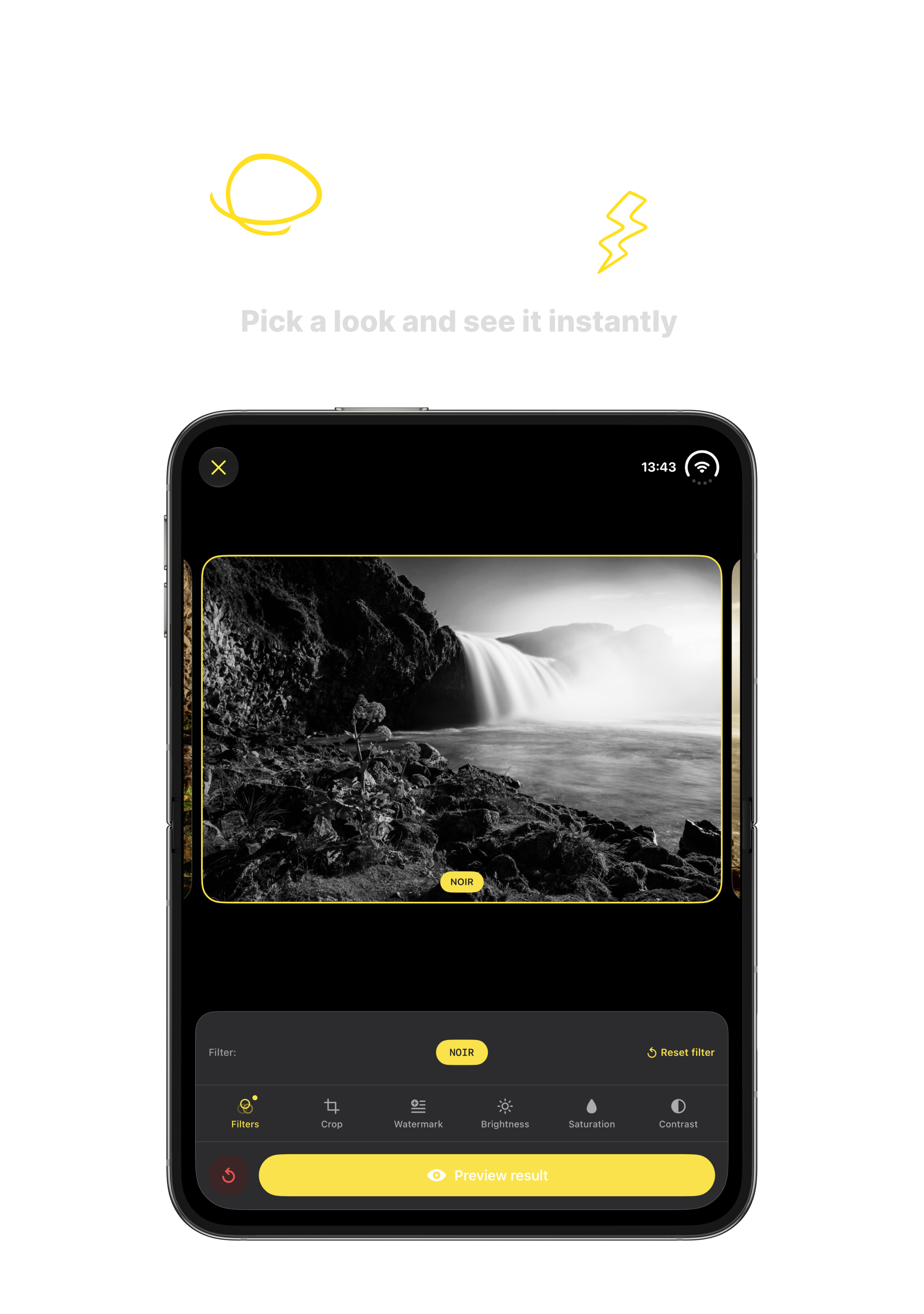
Preview each look live, then fine-tune brightness, contrast and saturation.

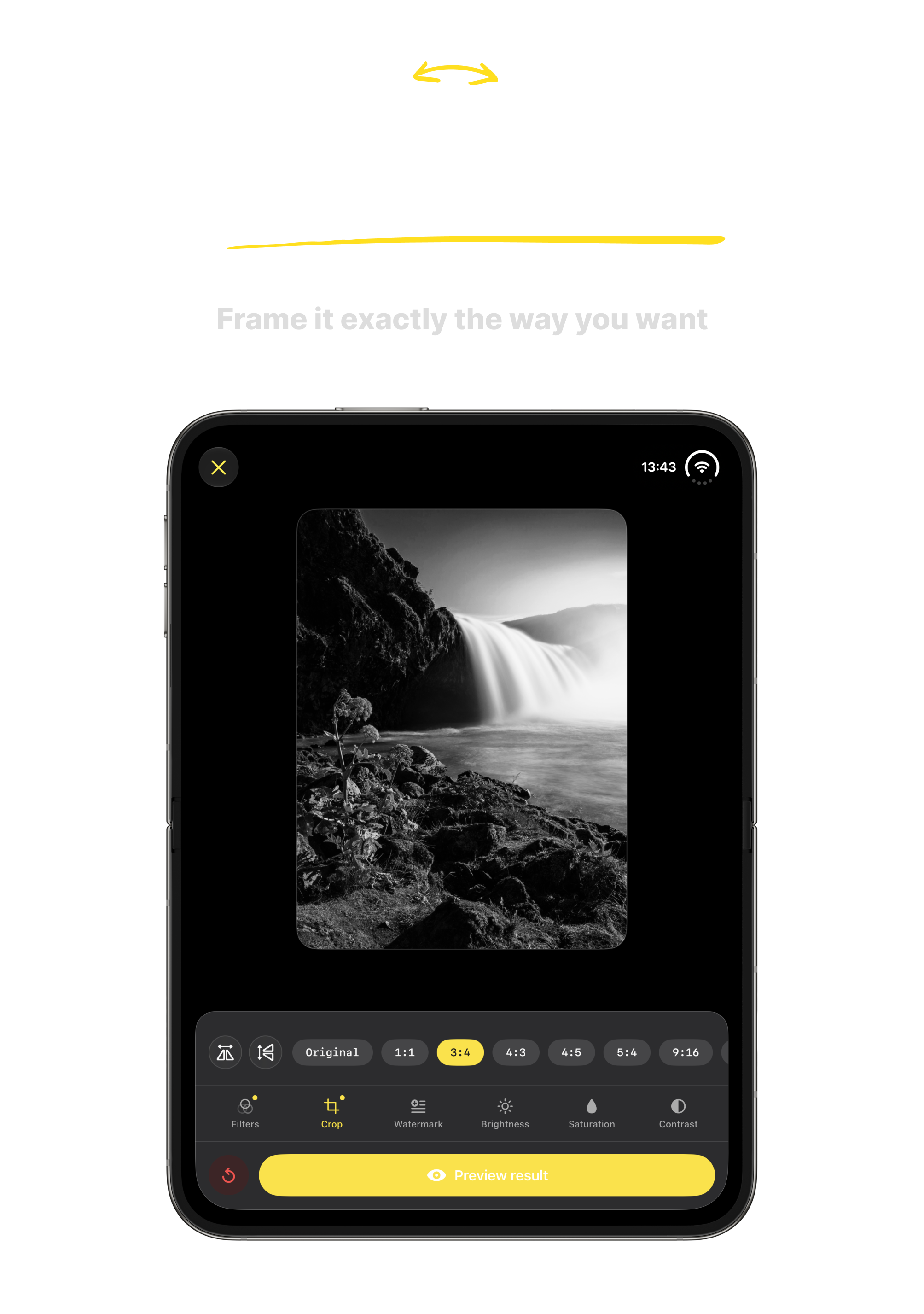
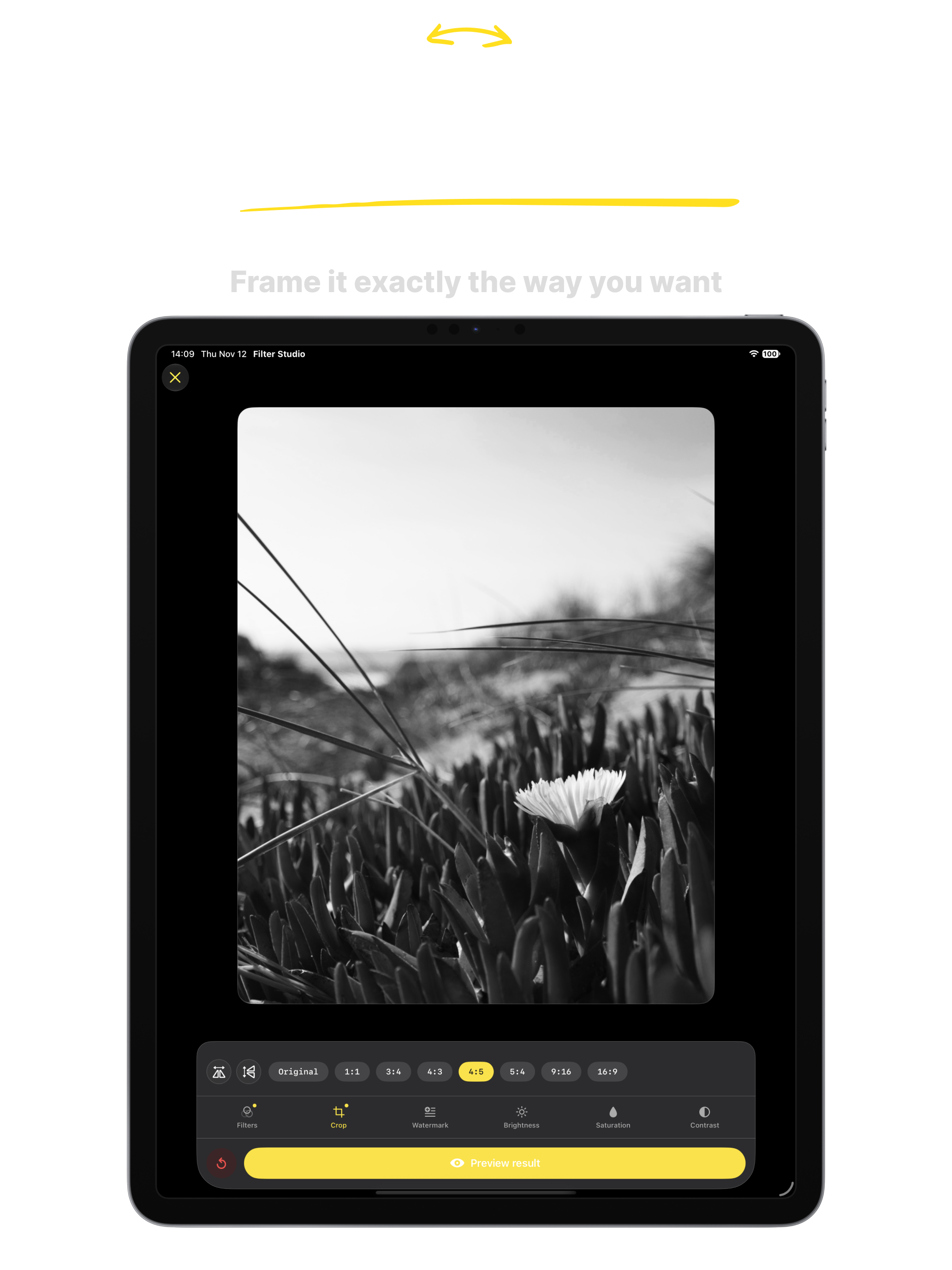
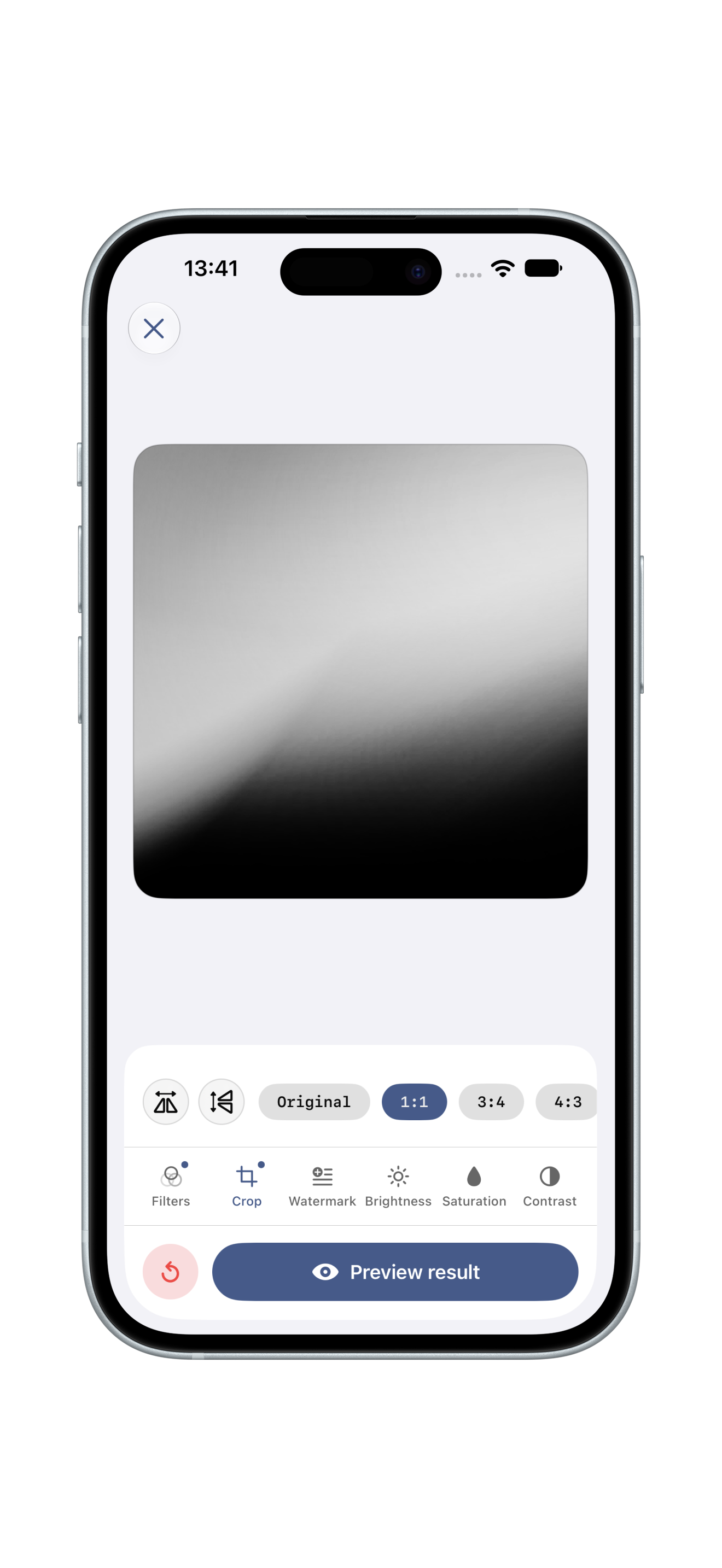
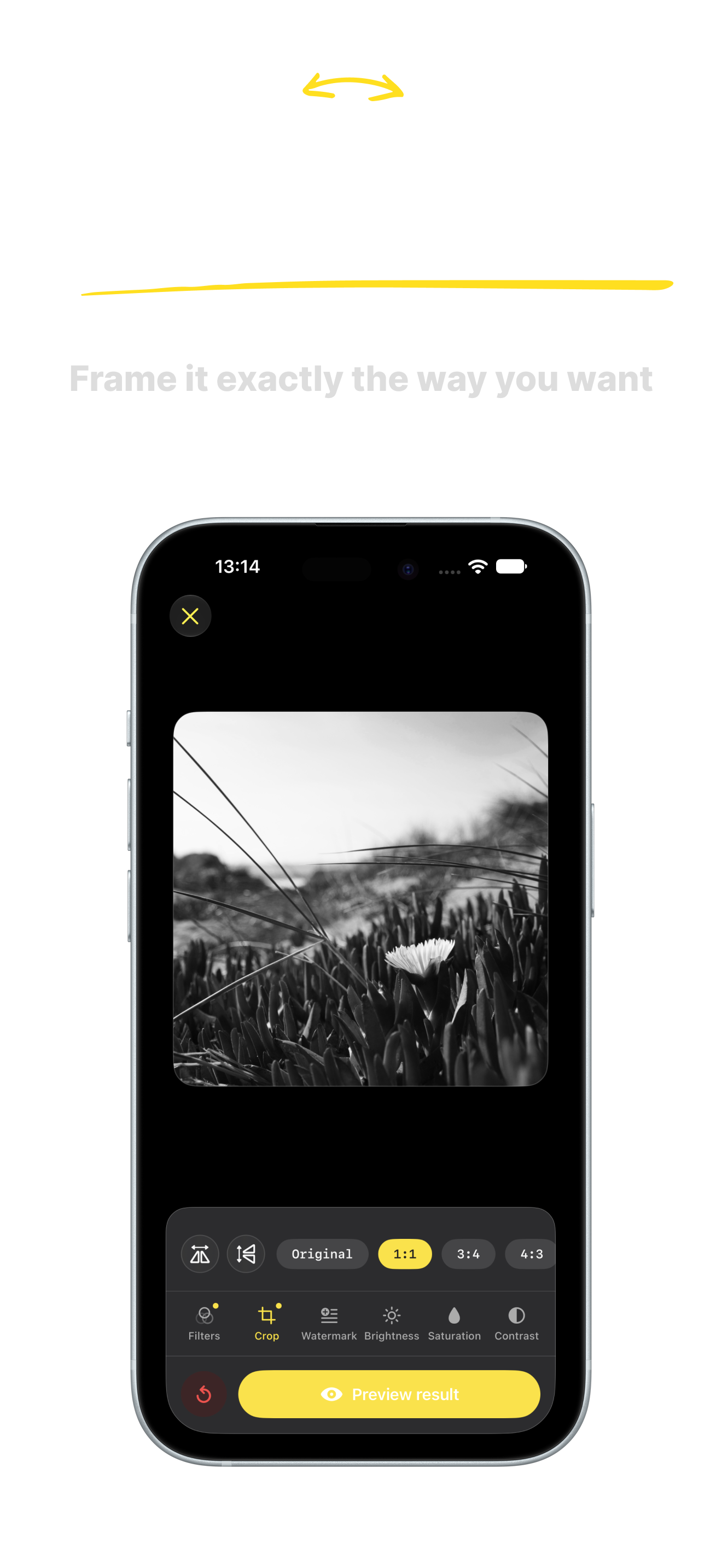
STEP 06 Crop to Any Ratio

Square, portrait, wide — pick the frame for where the photo will live.

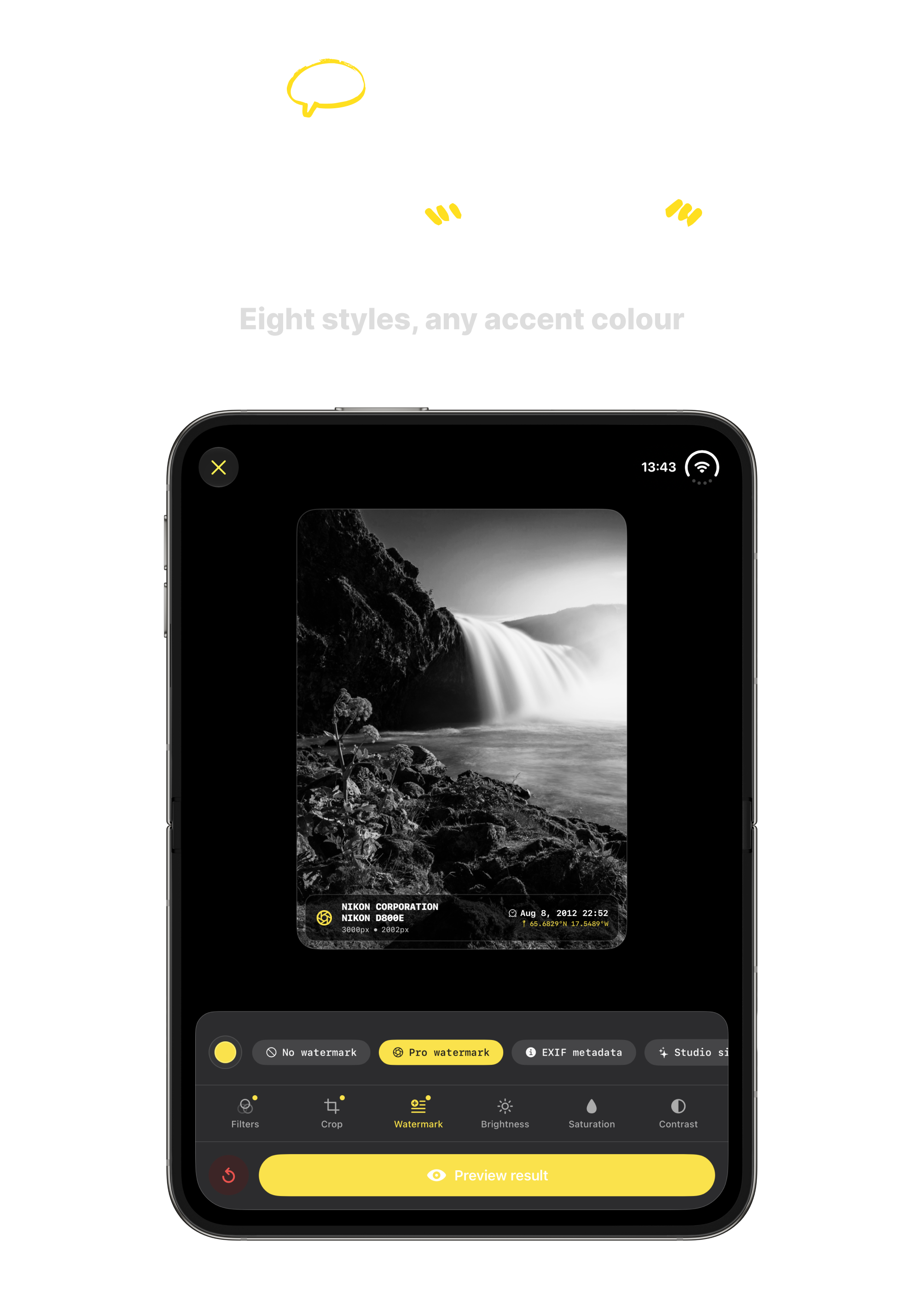
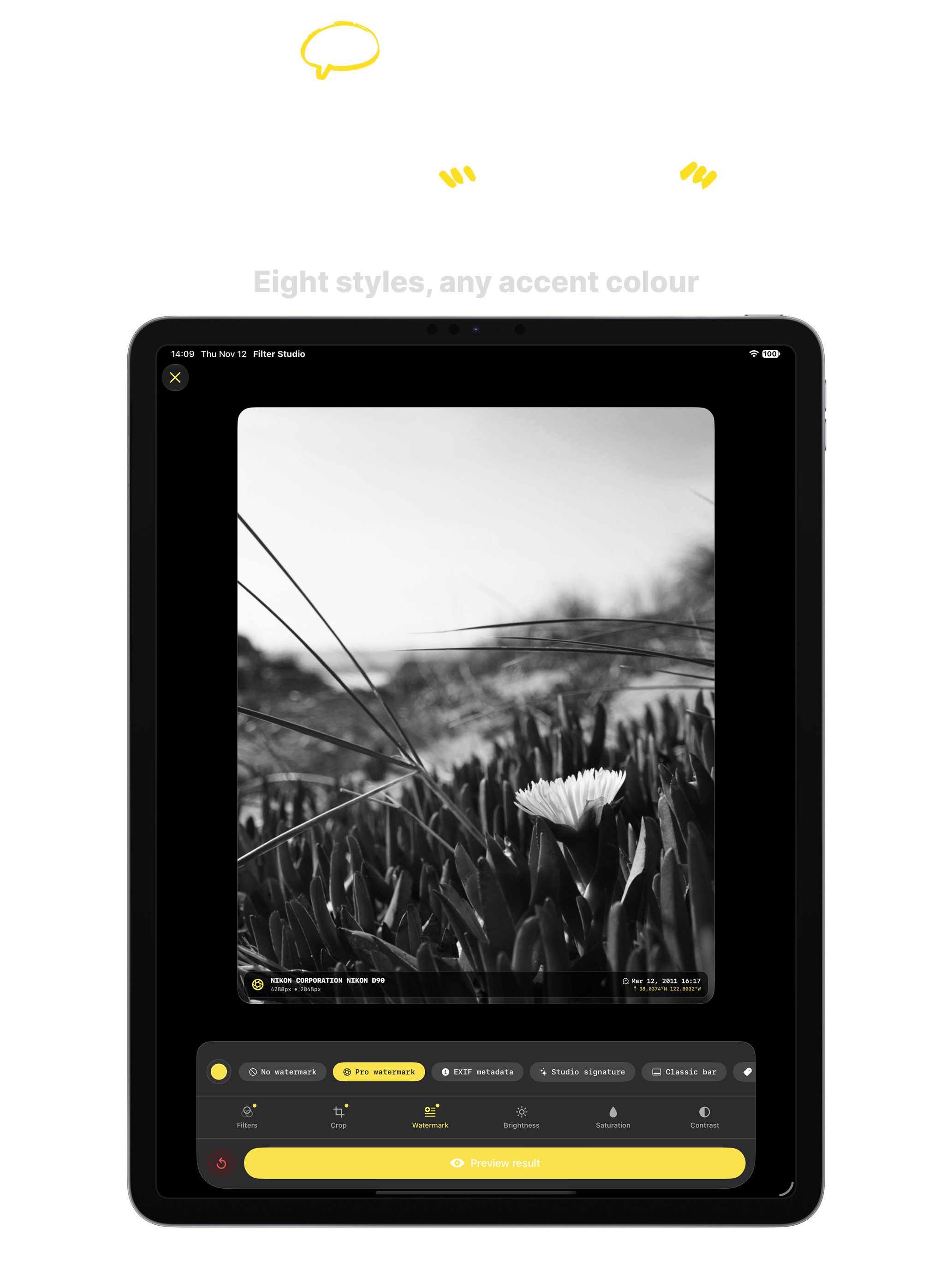
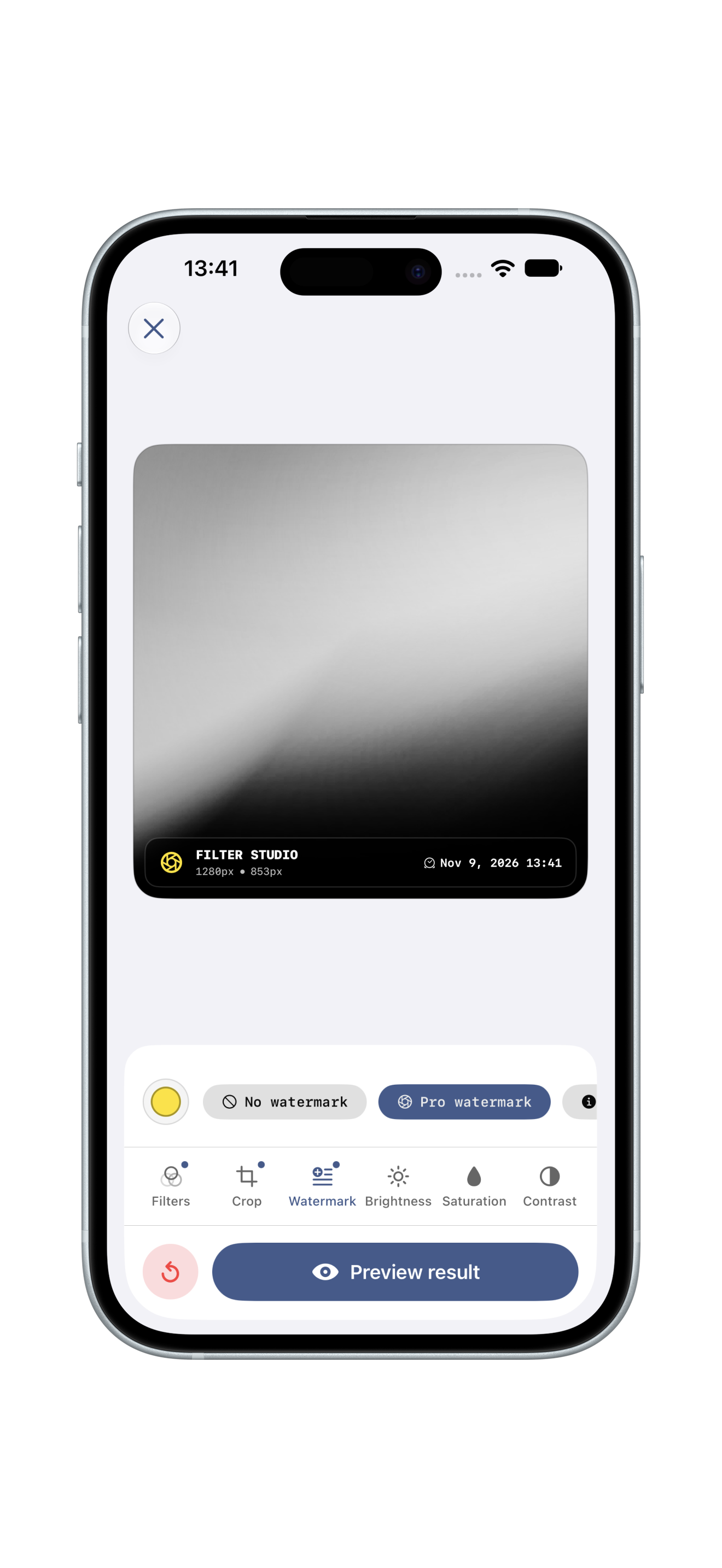
STEP 07 Add a Watermark

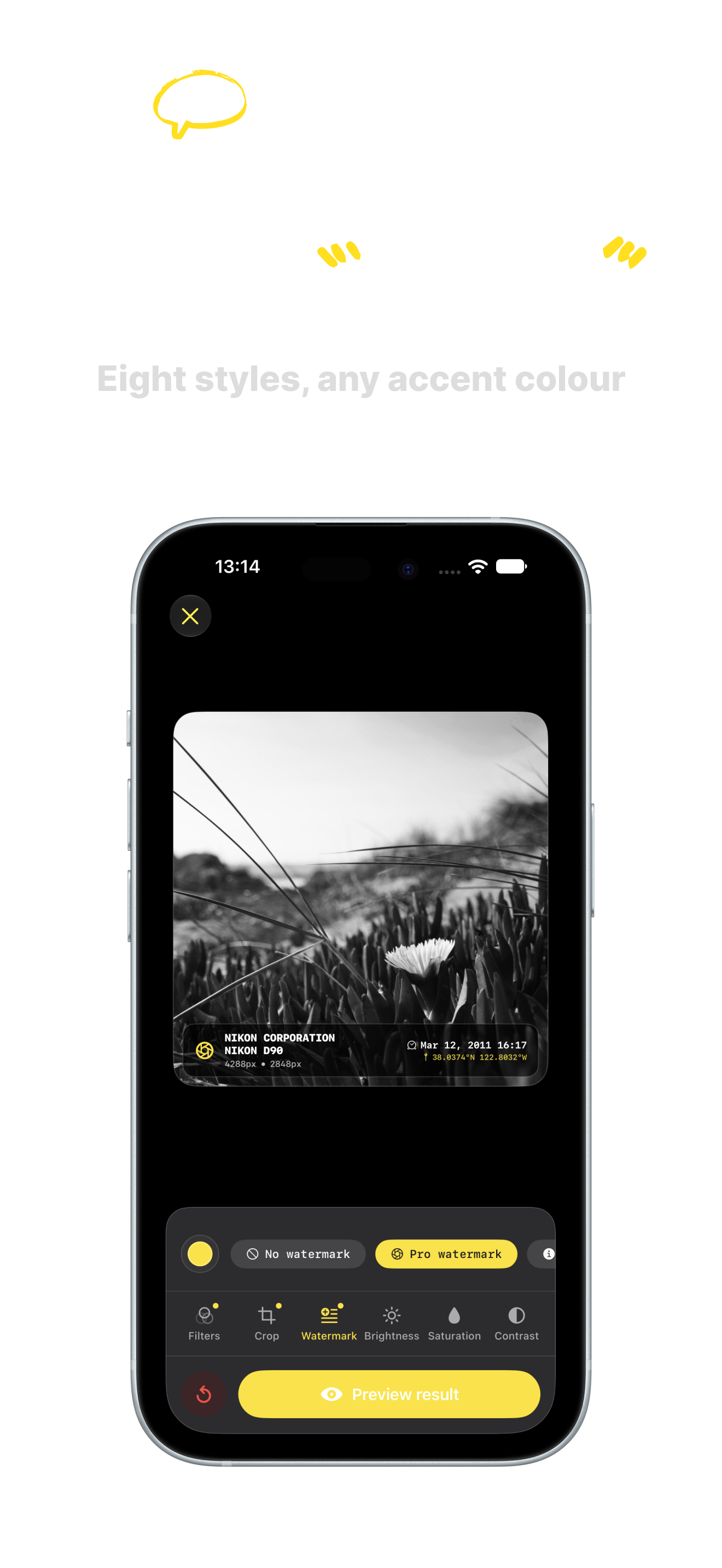
Eight styles built from the photo EXIF data: camera, timestamp, film frame and more.

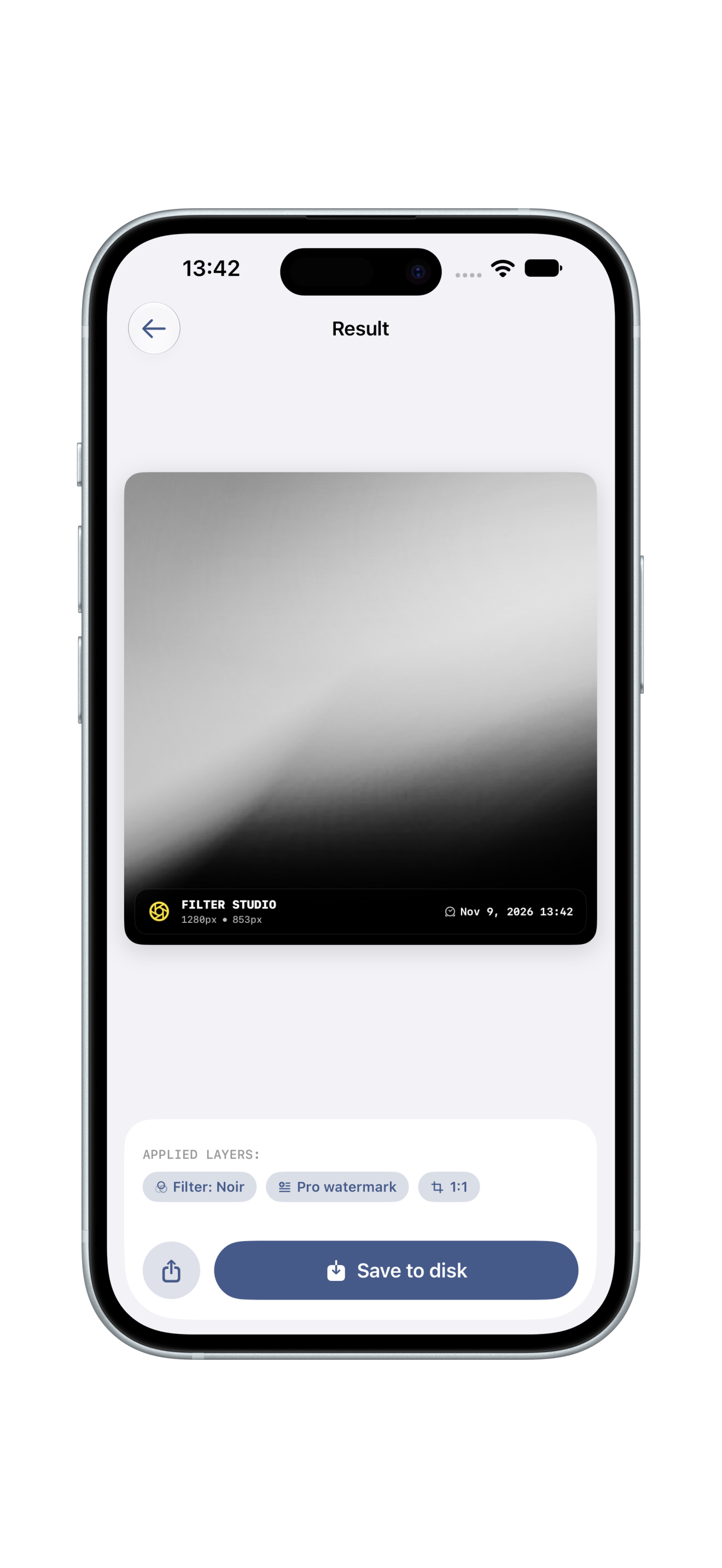
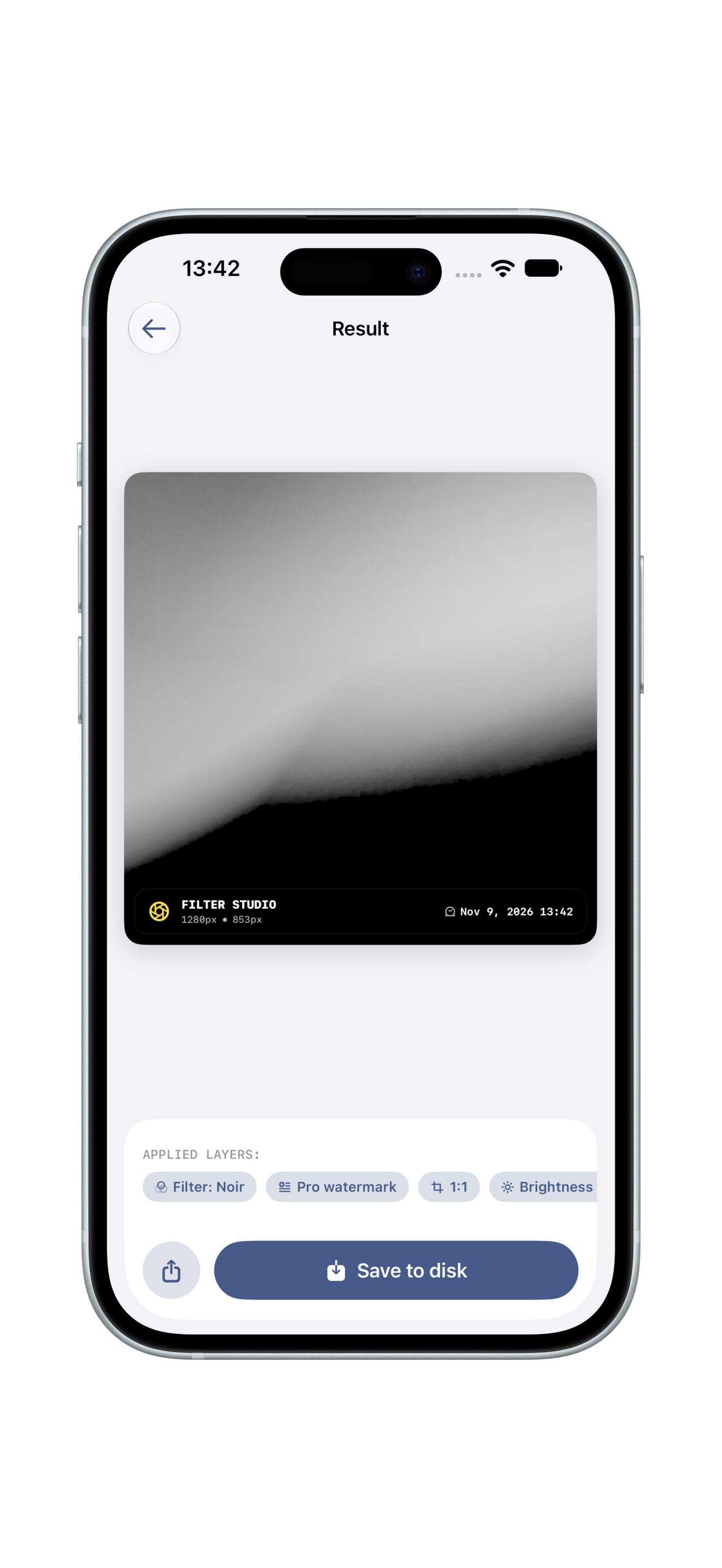
STEP 08 Preview the Result

Check the final result with instant toggle, then save a new version.

STEP 09 Saved as a Version

Each save adds a new frame to your gallery. The original stays untouched.

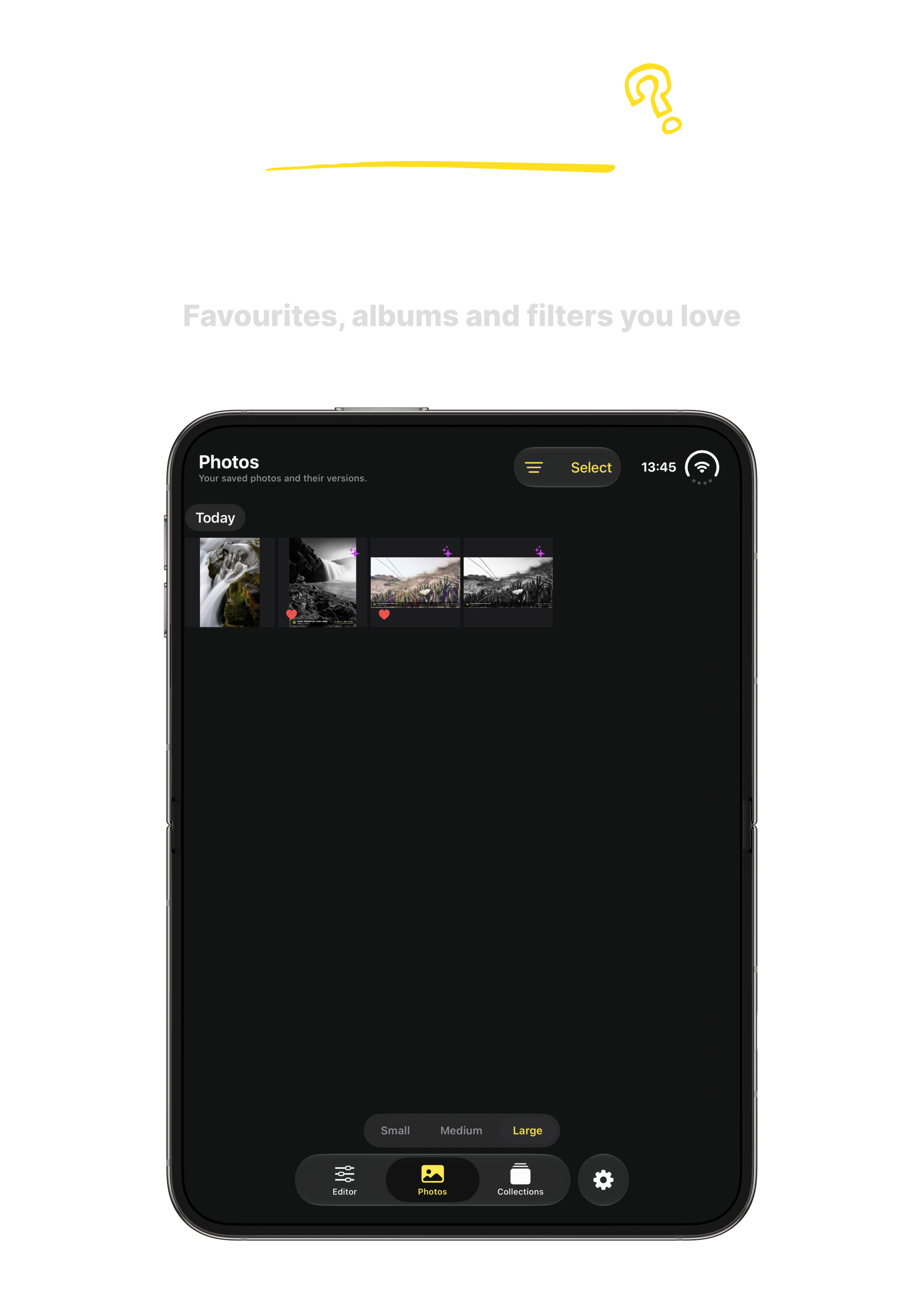
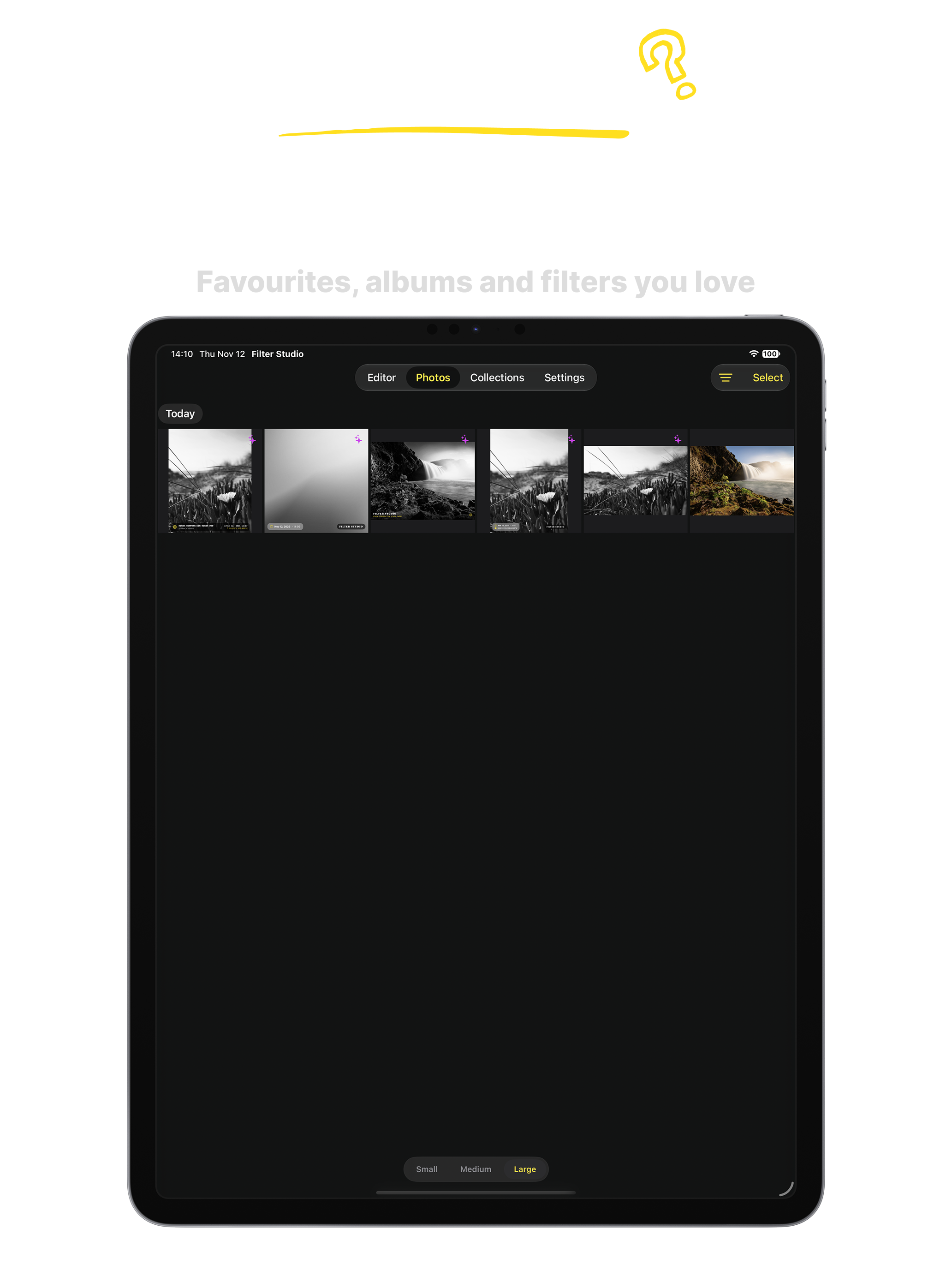
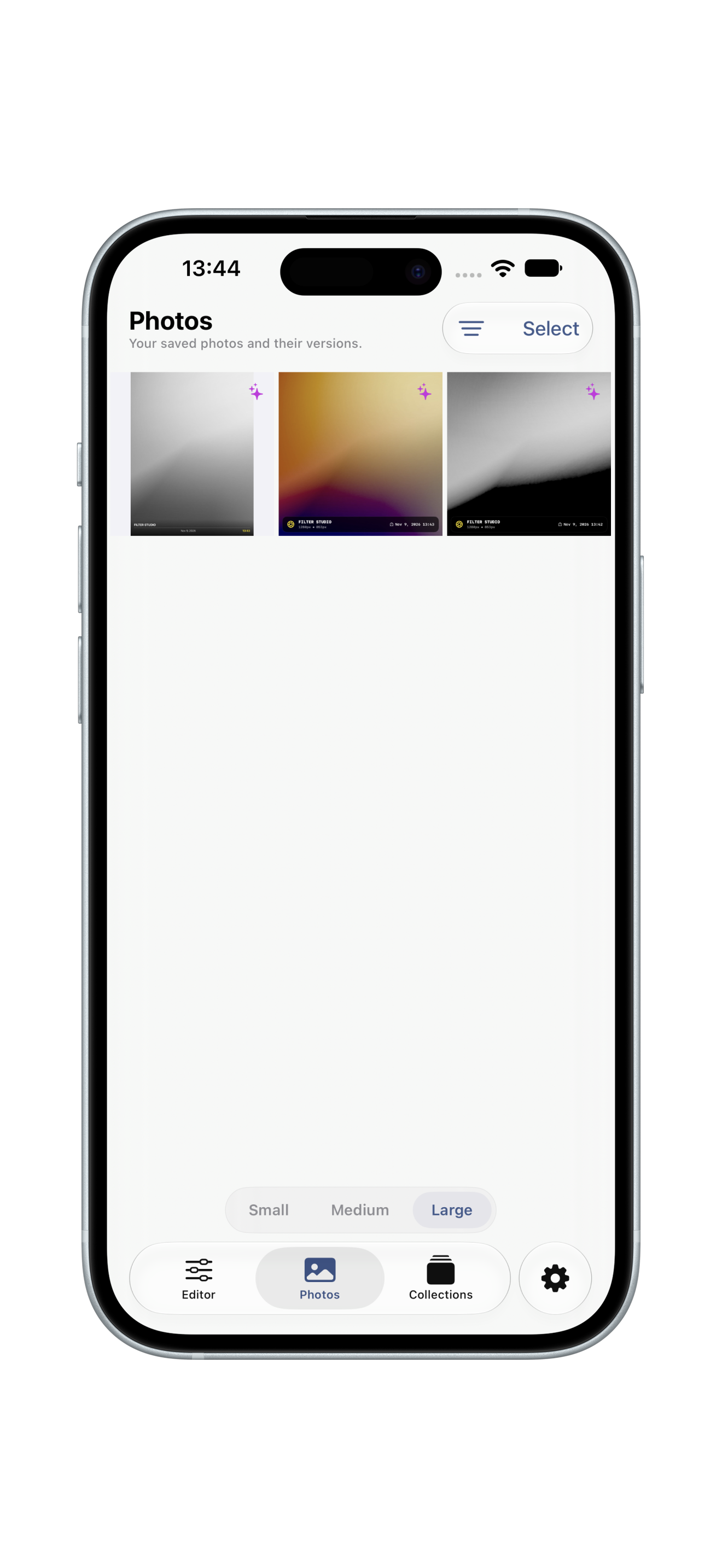
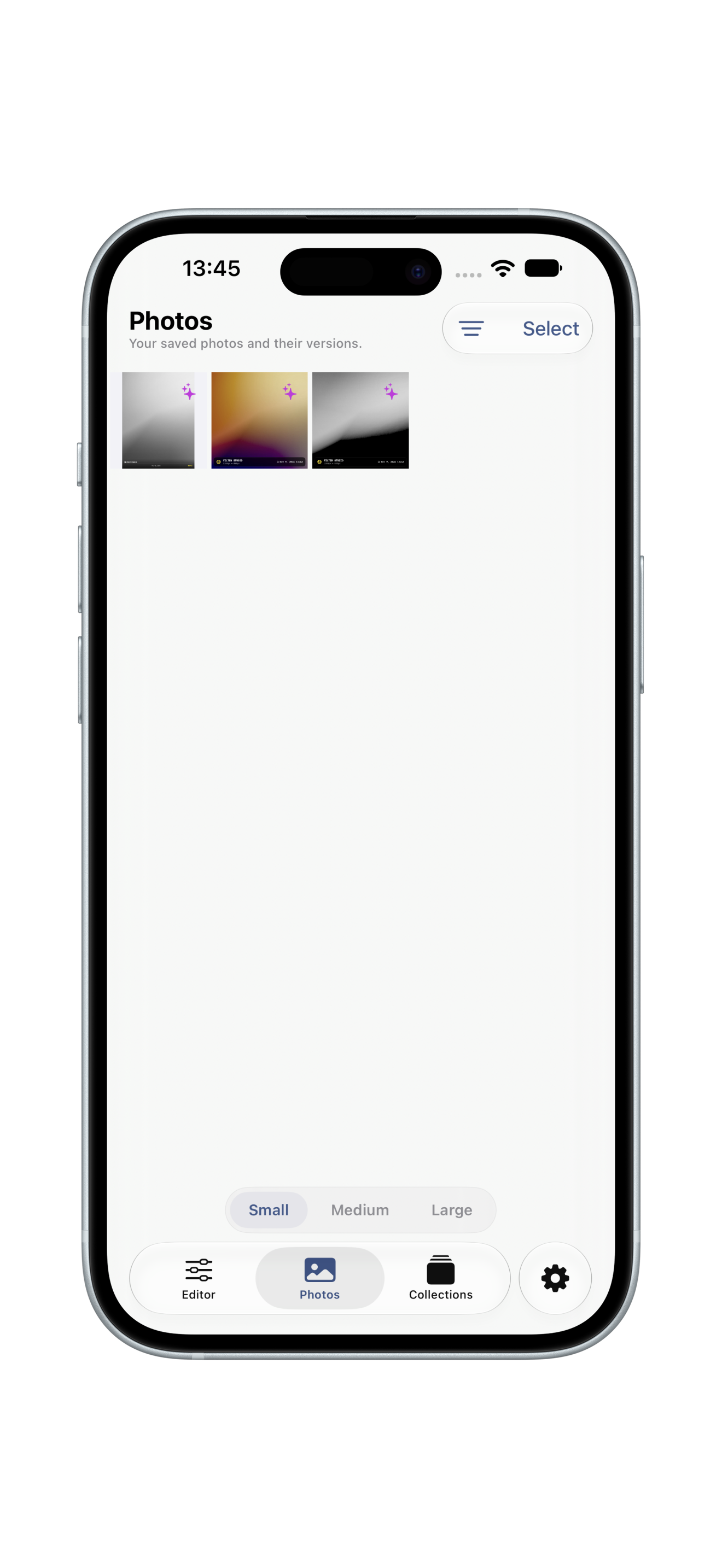
STEP 10 Your Personal Gallery

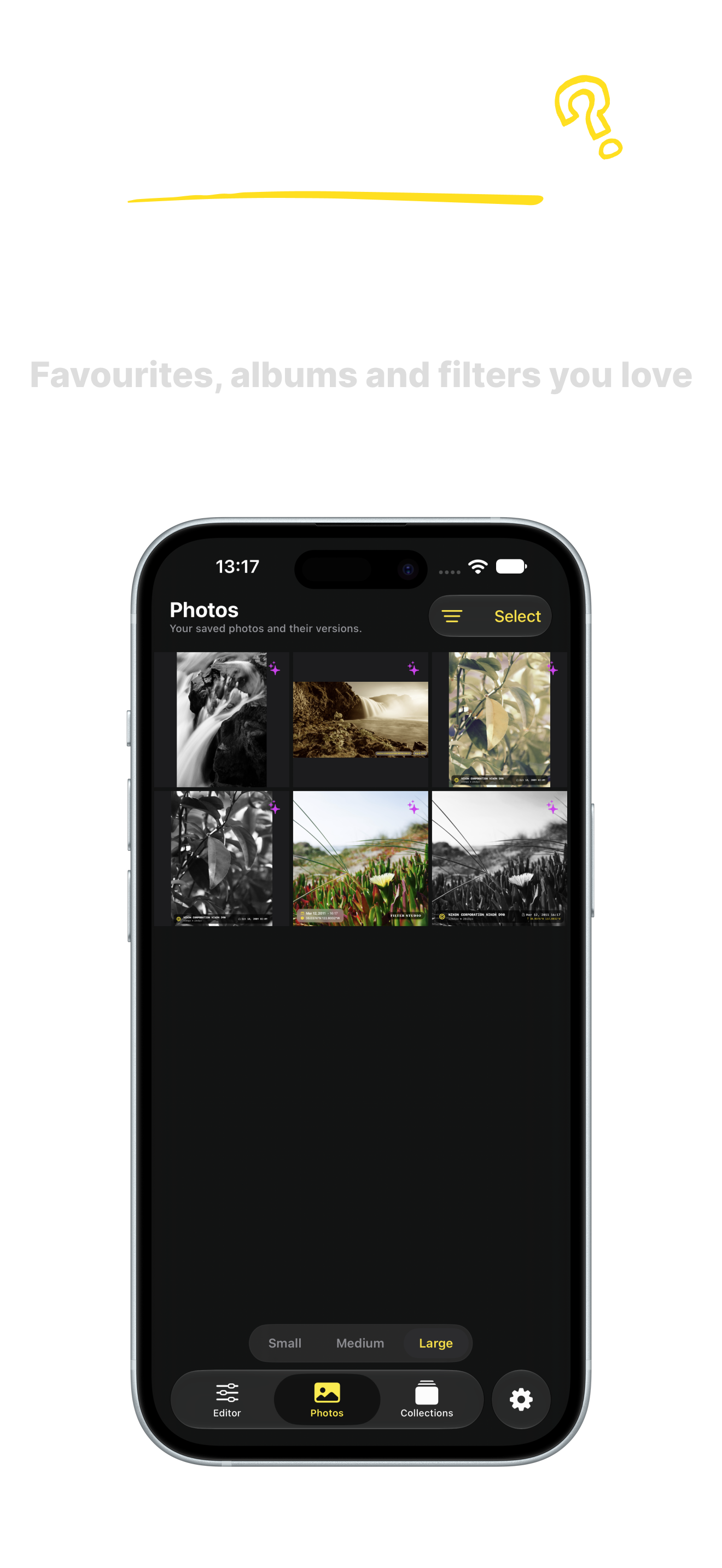
All edited frames in one place, sorted with the date they were captured or saved.

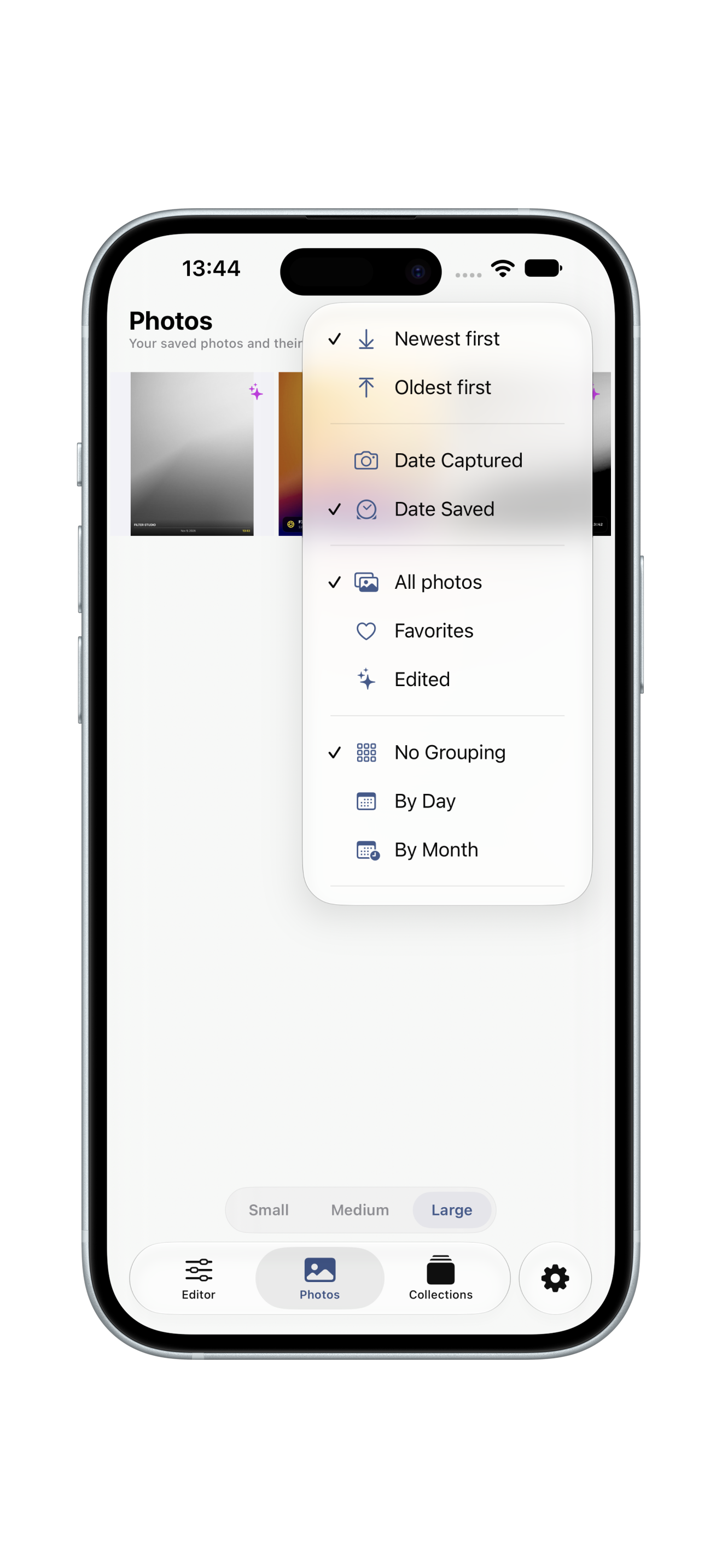
STEP 11 Sort & Group

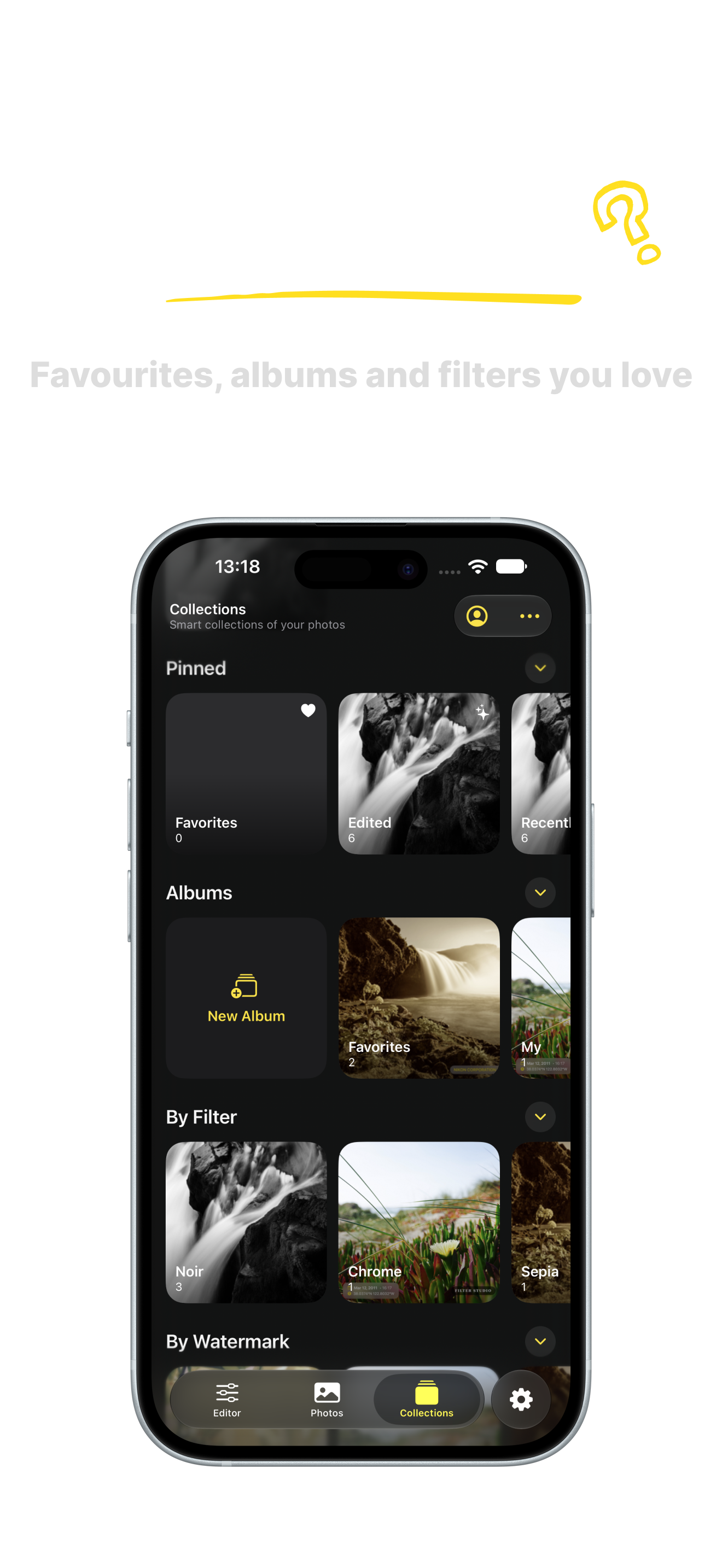
Group frames by day, month or filter type to keep your creative portfolio organized.

STEP 12 Instant Search

Find any edited shot by filter name, camera model, date or custom watermark text.

STEP 13 Photo Detail View

Zoom in to inspect pixel-level filter rendering, sharp grain and color grading.

STEP 14 Edit Details & EXIF

View full metadata: aperture, shutter speed, ISO, focal length and color profile.

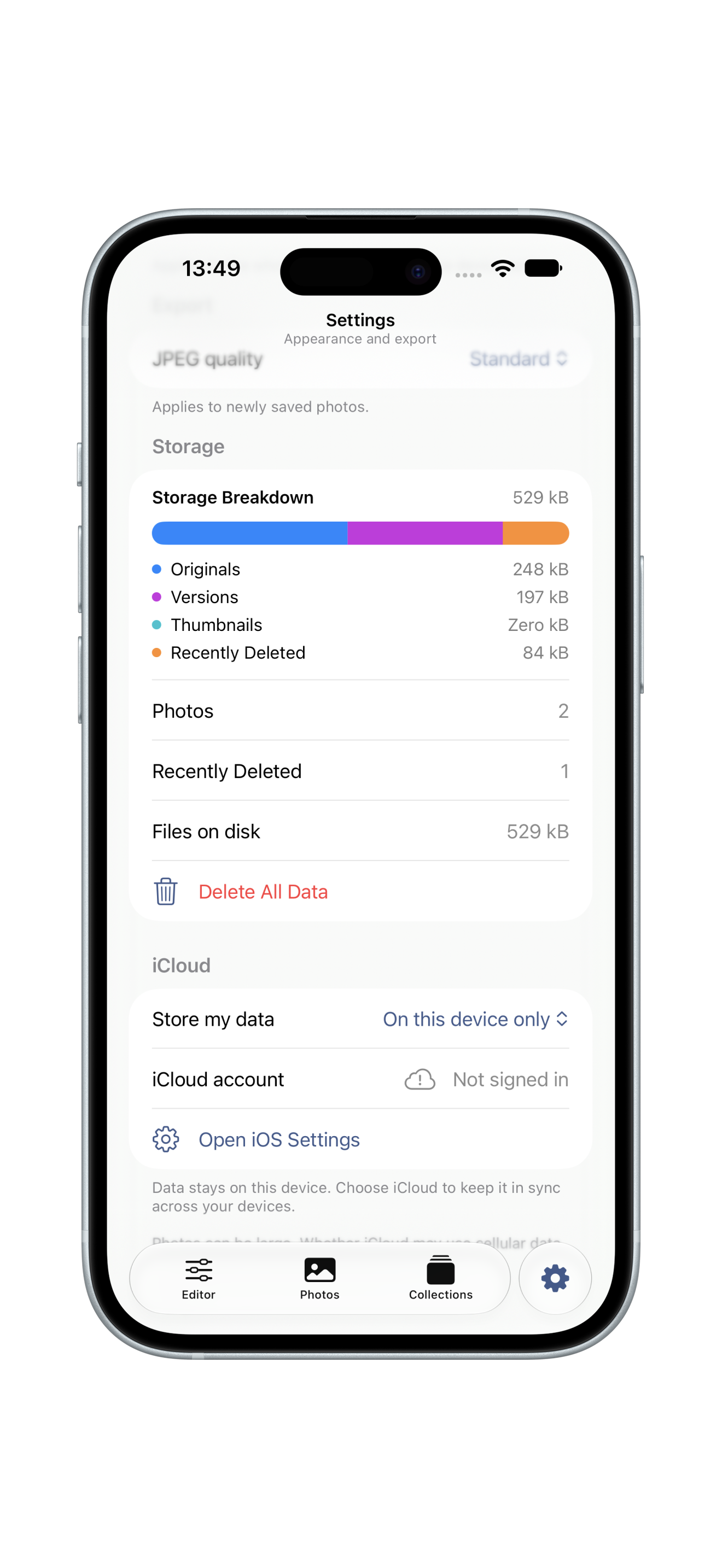
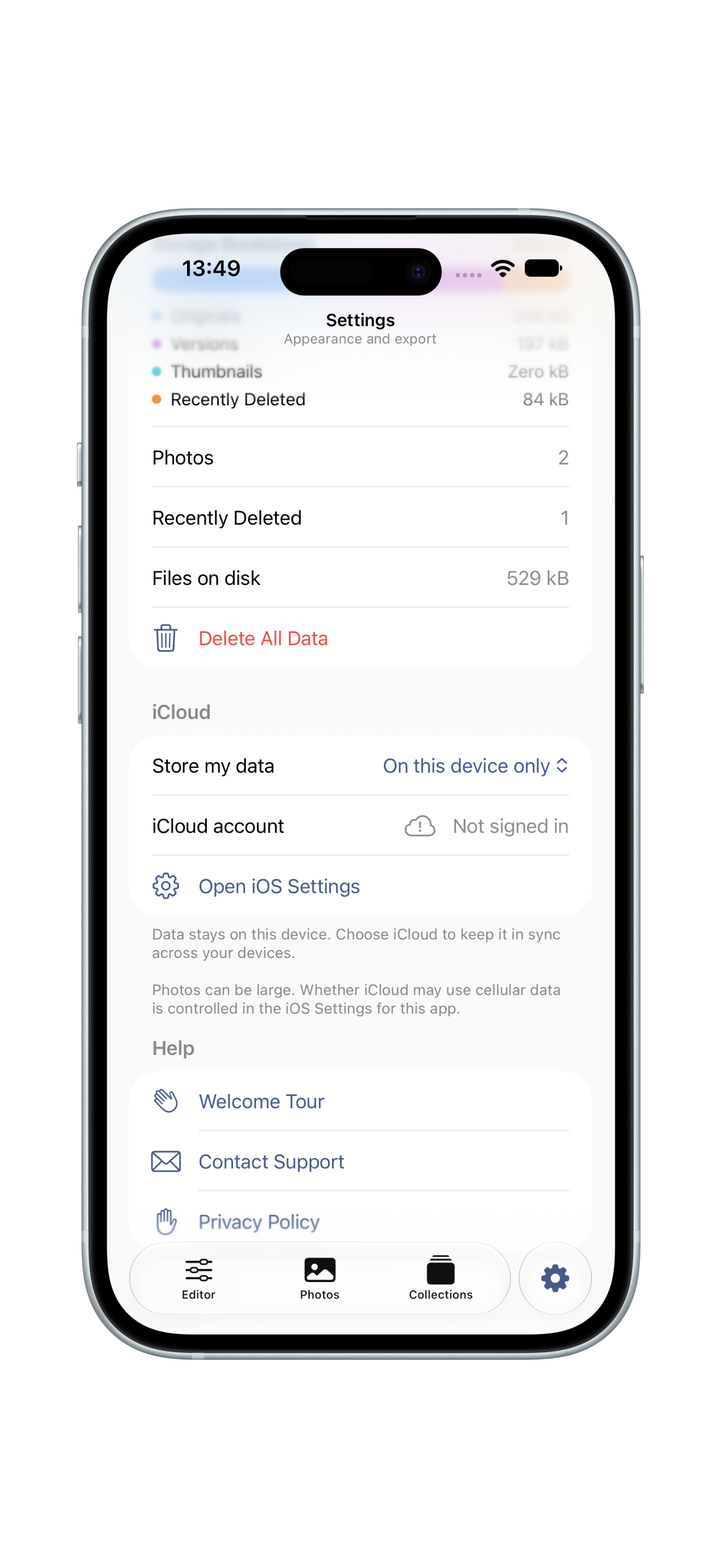
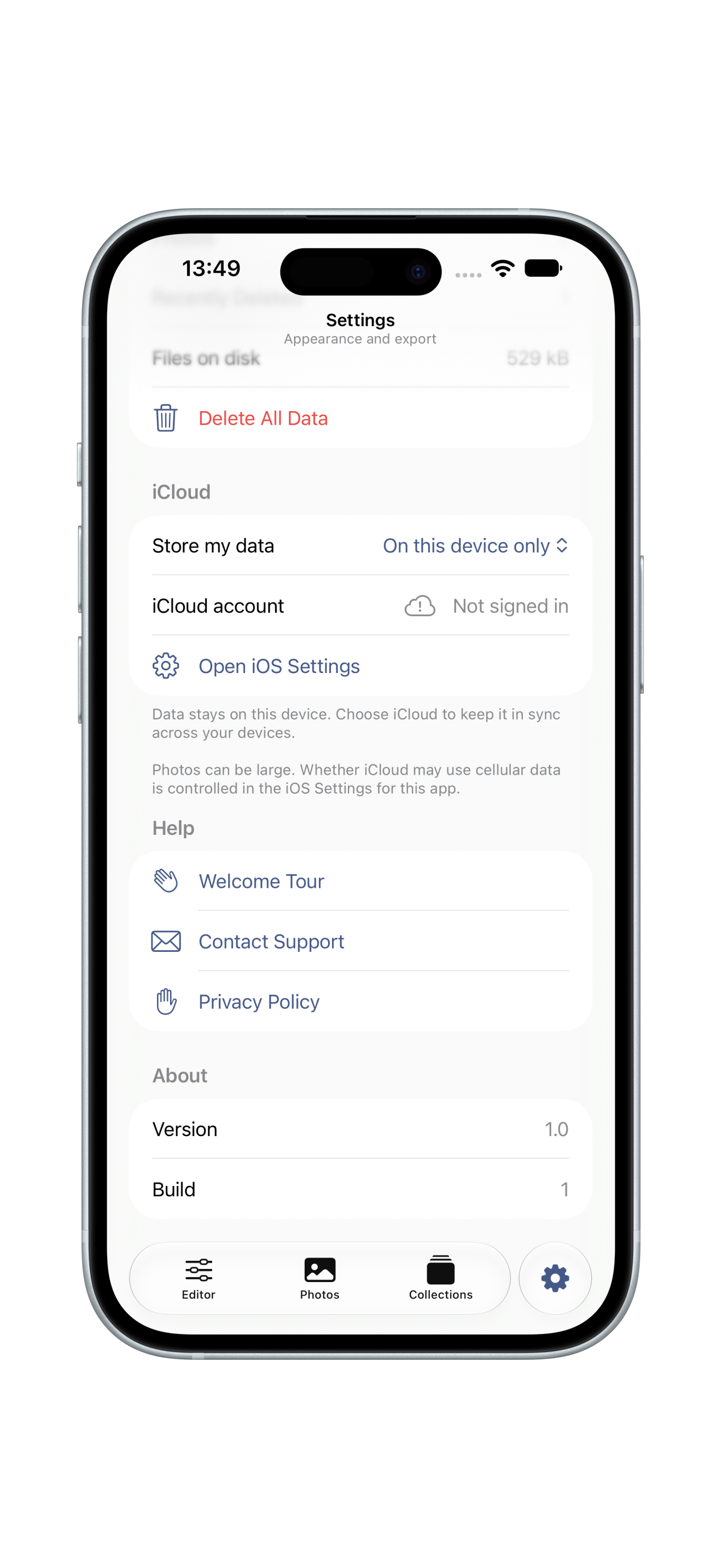
STEP 15 Sync Status & Storage

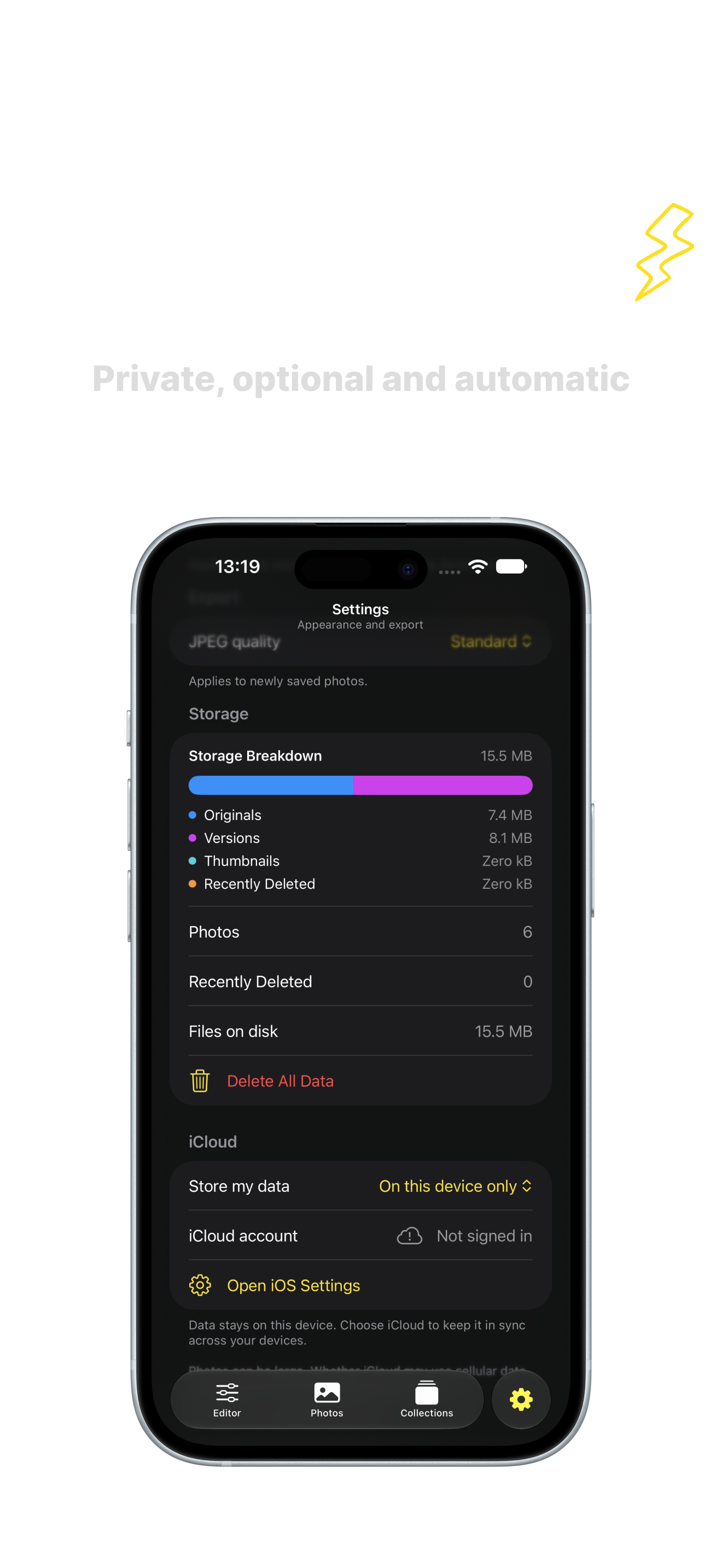
Check iCloud sync status, on-device cache size and database health at a glance.

STEP 16 Seamless iCloud Sync

Edits sync automatically across iPhone and iPad using private Apple CloudKit.

STEP 17 Export & Share

Export full-resolution JPEG, HEIF or PNG with watermarks or clean originals.

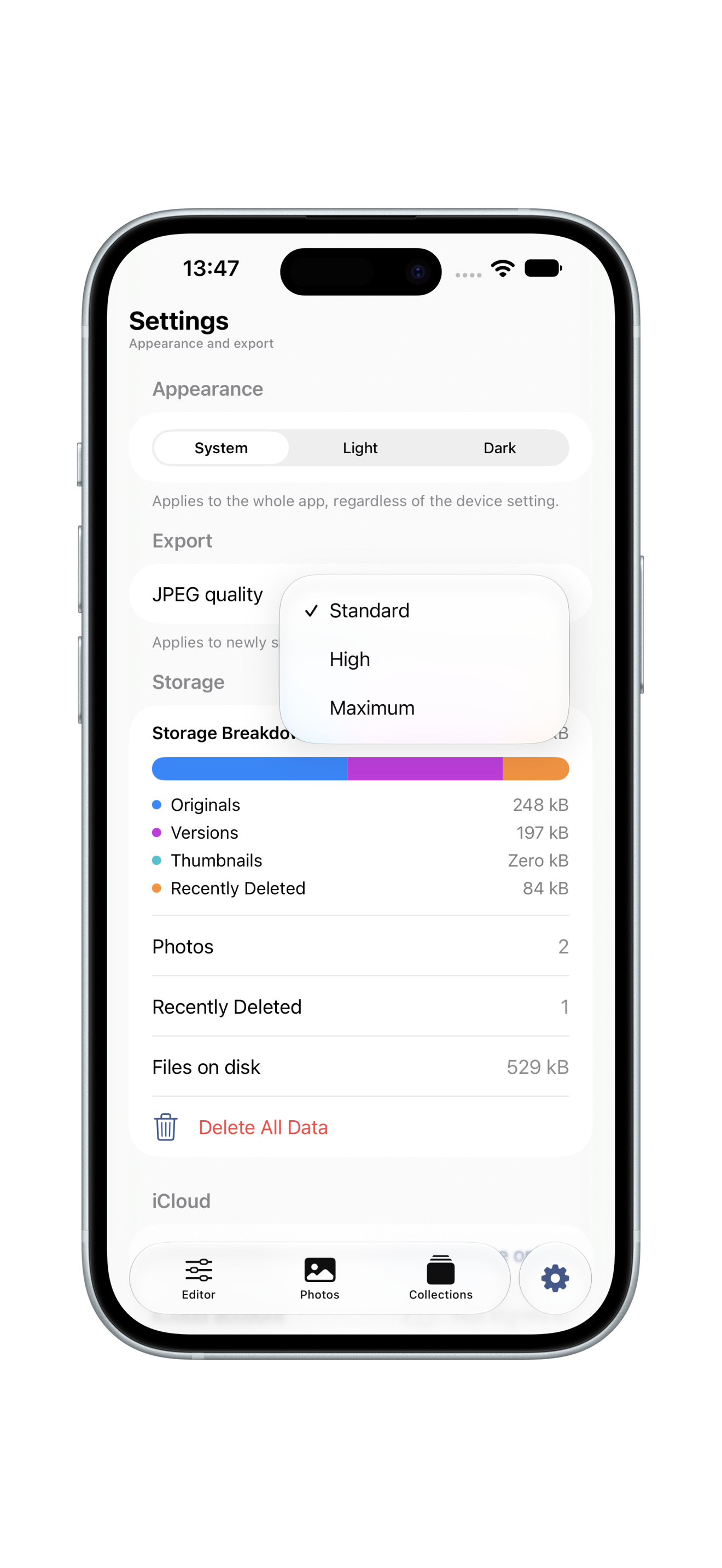
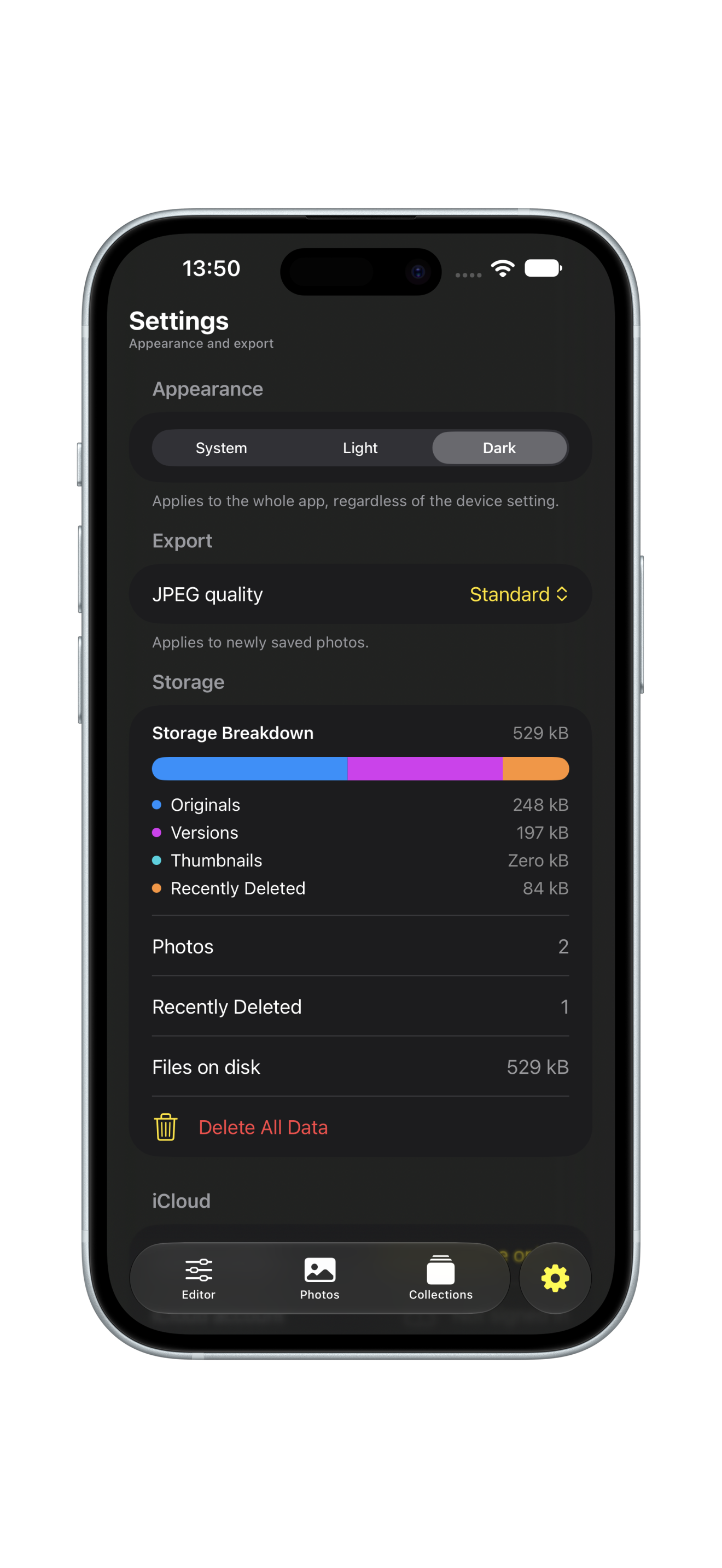
STEP 18 Studio Settings

Customize default filter strength, export quality, haptic feedback and gestures.

STEP 19 Dark & Light Mode

Designed to look stunning in deep OLED dark theme and crisp daytime light mode.

STEP 20 Ready to Create

You are all set. Pick your first shot and bring your photographic vision to life.

▶ VIDEO DEMO iPhone 18 Pro Video Demo

Watch real-time live preview filtering, cropping, and saving flow.

The philosophy

Calm creative flow.
Zero compromise.

A fast, private photo editor built for people who care about their images and their privacy.

Your photos, your creative vision.

Filter Studio gives you studio-grade Core Image filters, non-destructive versioning, and custom watermarks without accounts, ads, or tracking. Your photos remain on your device and sync privately through your personal iCloud account.

01 Filter & Tune
02 Watermark
03 Version & Sync
Architecture Highlights

Engineered for iOS & iPadOS

Every feature is built purely with Apple native frameworks: Core Image GPU shaders, SwiftData persistence, and iCloud CloudKit synchronization.

Core Image Shaders

Hardware-accelerated live filter processing at 60 fps.

Non-Destructive

Original photos stay pristine; each save stores a lightweight version.

Dynamic Watermarks

8 customizable styles with EXIF, camera model, date or custom text.

SwiftData & CloudKit

Private cloud database synchronization across all your Apple devices.

100% On-Device Native
0 Data Trackers
iCloud Private SwiftData Sync
Customer Support

How can we help?

Send a question, bug report, suggestion, or privacy request. We respond directly by email.

Talk to the developer.

Use the form or email hakobghlijyan@gmail.com.

Frequently Asked Questions

What is Filter Studio?
Filter Studio is a calm, fast photo editing application for iPhone and iPad with studio-grade Core Image filters, non-destructive versions, crop ratios, and custom watermarks.
Are my photos ever uploaded to external servers?
Never. All photo processing happens entirely on your device using Apple Core Image. Syncing occurs only through your private iCloud database managed by Apple.
Do I need an account?
No account is required. Download and start editing immediately without registration.
How does non-destructive versioning work?
Your original photograph is never modified or overwritten. Every time you save an edit, Filter Studio saves a new version in your gallery while preserving the pristine original.
What watermark styles are available?
Filter Studio includes eight watermark styles derived from the photo EXIF data, timestamp, camera model, or custom text with full color selection.
Which devices and iOS versions are supported?
Filter Studio supports all iPhone and iPad models running iOS 18.0, iPadOS 18.0, or newer, optimized for Liquid Glass and modern Super Retina displays.
How do I request a feature or report a bug?
You can submit feedback directly via our web support form or email hakobghlijyan@gmail.com. We review every user message.
YOUR PRIVACY MATTERS

Privacy Policy

Last updated: November 2026 · Native iOS 18+ Architecture

Zero Personal Data Collection

Filter Studio was designed from the ground up to respect your digital privacy. We do not require accounts, we do not track your activity, and we never transmit your photos to third-party servers.
1. Summary
Filter Studio has no accounts, no ads and no analytics. Your photos, edits and their metadata stay on your device. If you turn on iCloud, they sync only through your own private iCloud, which the developer cannot access.
2. Who We Are
Filter Studio is developed by Hakob Ghlijyan, an independent developer. Contact: hakobghlijyan@gmail.com.
3. What the App Stores
Photos you import, the edited versions you save, their metadata (date, camera, location if the photo has it), albums, favourites and your settings. All of it is stored in the app’s own storage on your device.
4. iCloud
Sync is optional. When enabled, the app uses Apple’s private CloudKit database tied to your Apple ID. Only you can access it; the developer has no access and no copy. You can switch sync off in Settings.
5. Photos
You pick photos with the system photo picker. The app asks for access to Photos once, only to read the location of the photos you picked, and, if you tap Save to Photos, to add edited images. It never scans or uploads your library.
6. Location
Location is read only from the metadata that is already inside a photo. To show a place name, the app may send those coordinates to Apple’s geocoding service. Nothing is sent to the developer.
7. What We Do NOT Do
No tracking, no advertising, no third-party analytics or SDKs, no selling or sharing of data, no account, no profiling.
8. Diagnostic Logs
The app writes no logs that leave your device. If you share crash reports with Apple through iOS settings, Apple may provide anonymous reports to developers.
9. Data Export and Deletion
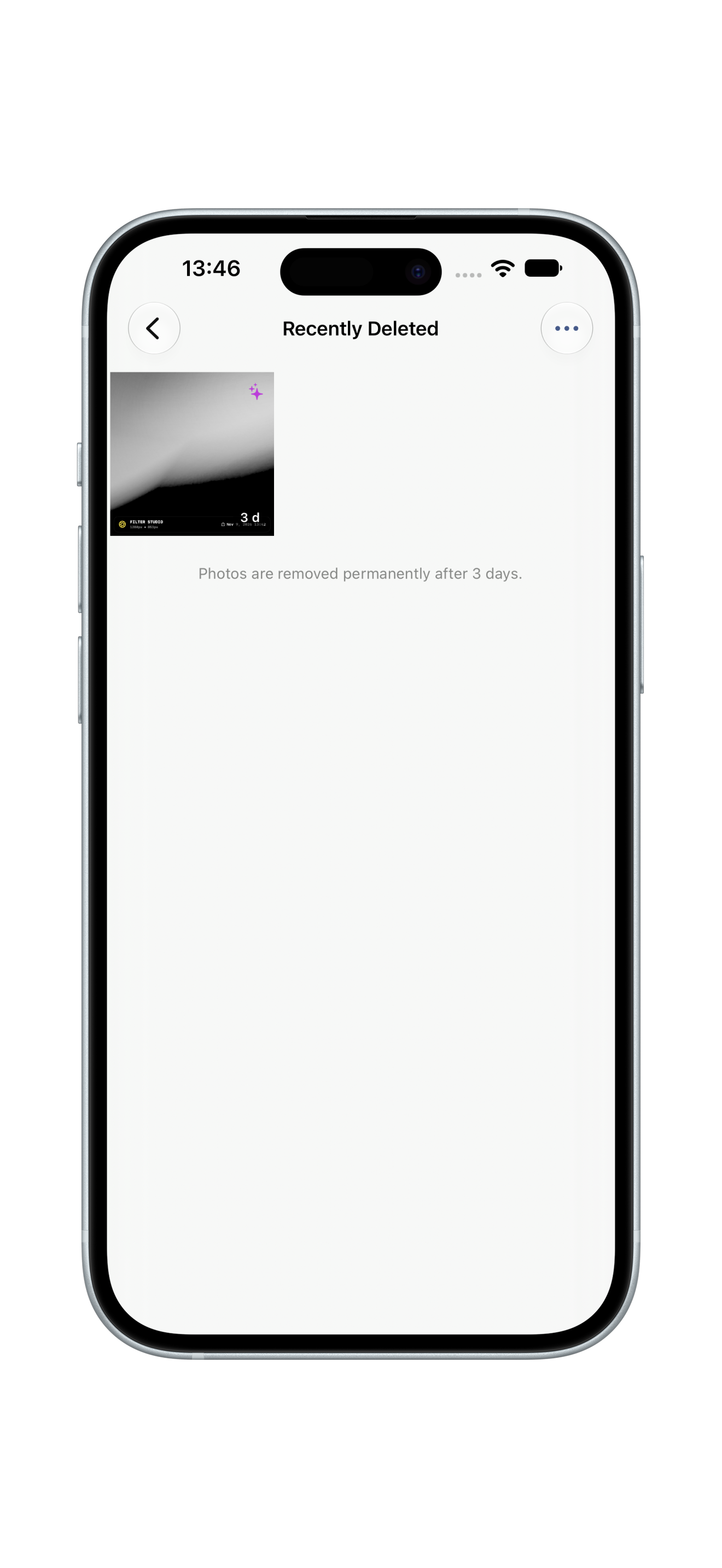
Sharing and exporting keep your photo’s metadata intact — the choice of where to send it is yours. Deleted photos stay 3 days in Recently Deleted. With iCloud on, deleting a photo also deletes it on your other devices. Deleting the app removes its local data.
10. Children
The app is not directed at children and collects no personal information from anyone.
11. Security
Data stays in the app’s protected storage on your device and, optionally, in your private iCloud, both protected by iOS.
12. This Website
This site is static. It sets no tracking cookies and uses no analytics. If you write through the contact form, we use your name, email and message only to reply.
13. Contact Information
For questions regarding this privacy policy, please contact Hakob Ghlijyan directly at hakobghlijyan@gmail.com.
Hover module to inspect
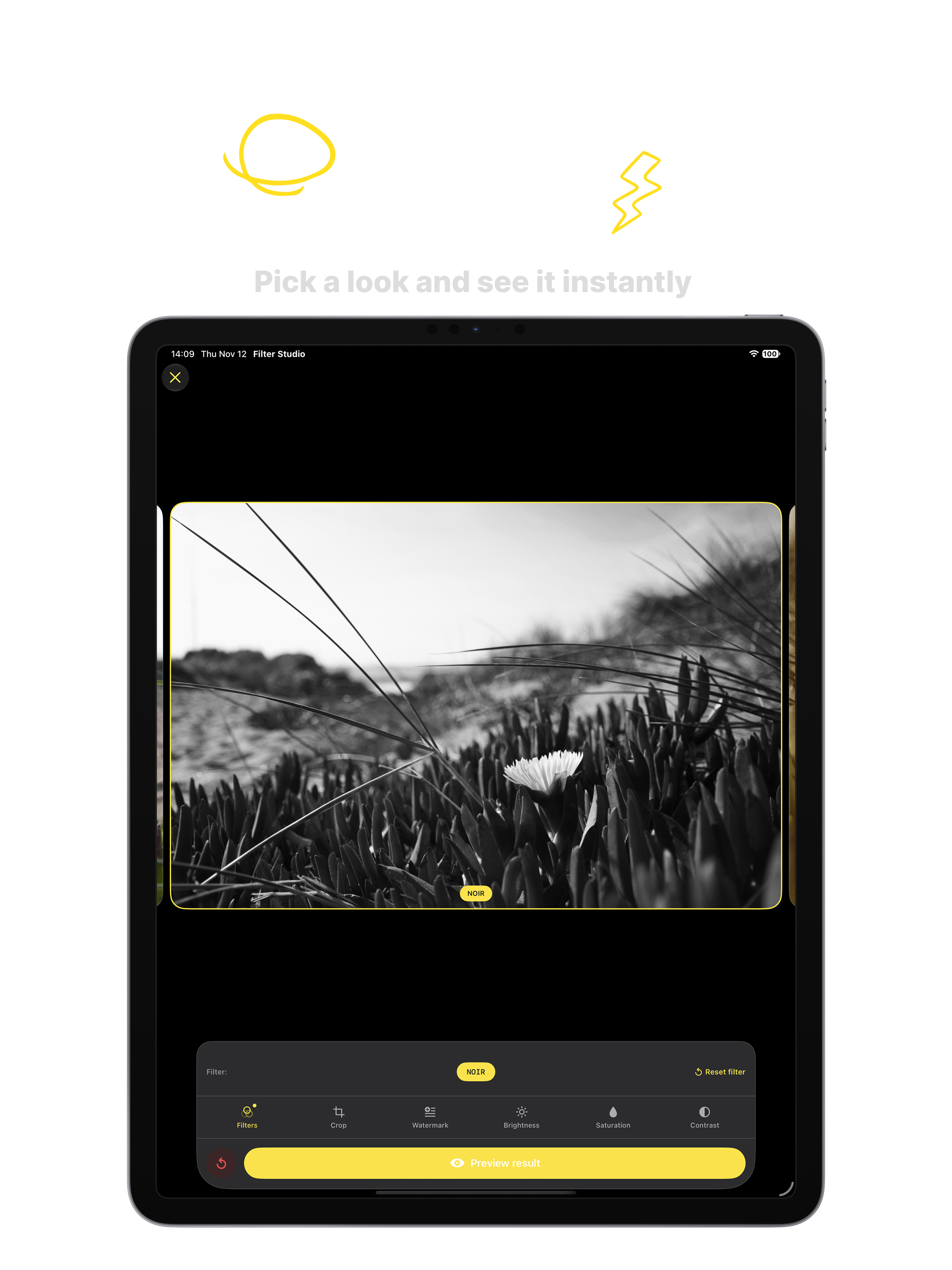
Filters with Live Preview
Core Image · Live previews · Filter Studio
Crop, Rotate & Mirror
Square, Portrait, Landscape ratios · Filter Studio
Dynamic Watermarks & EXIF
Your Watermark, Your Colour
Eight watermark styles · Custom colour · Filter Studio
Every Edit is a Version
Non-destructive storage · Original untouched · Filter Studio
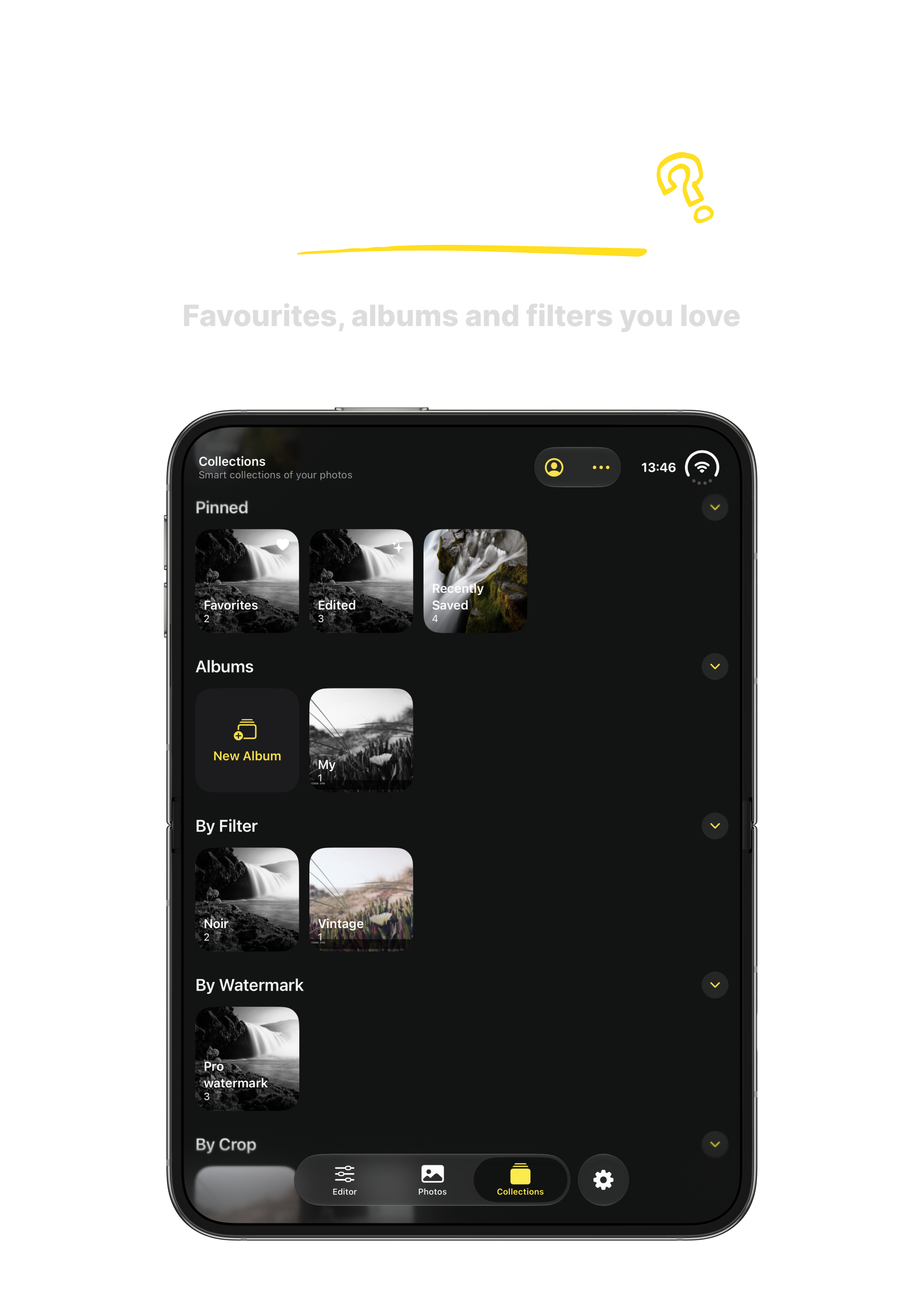
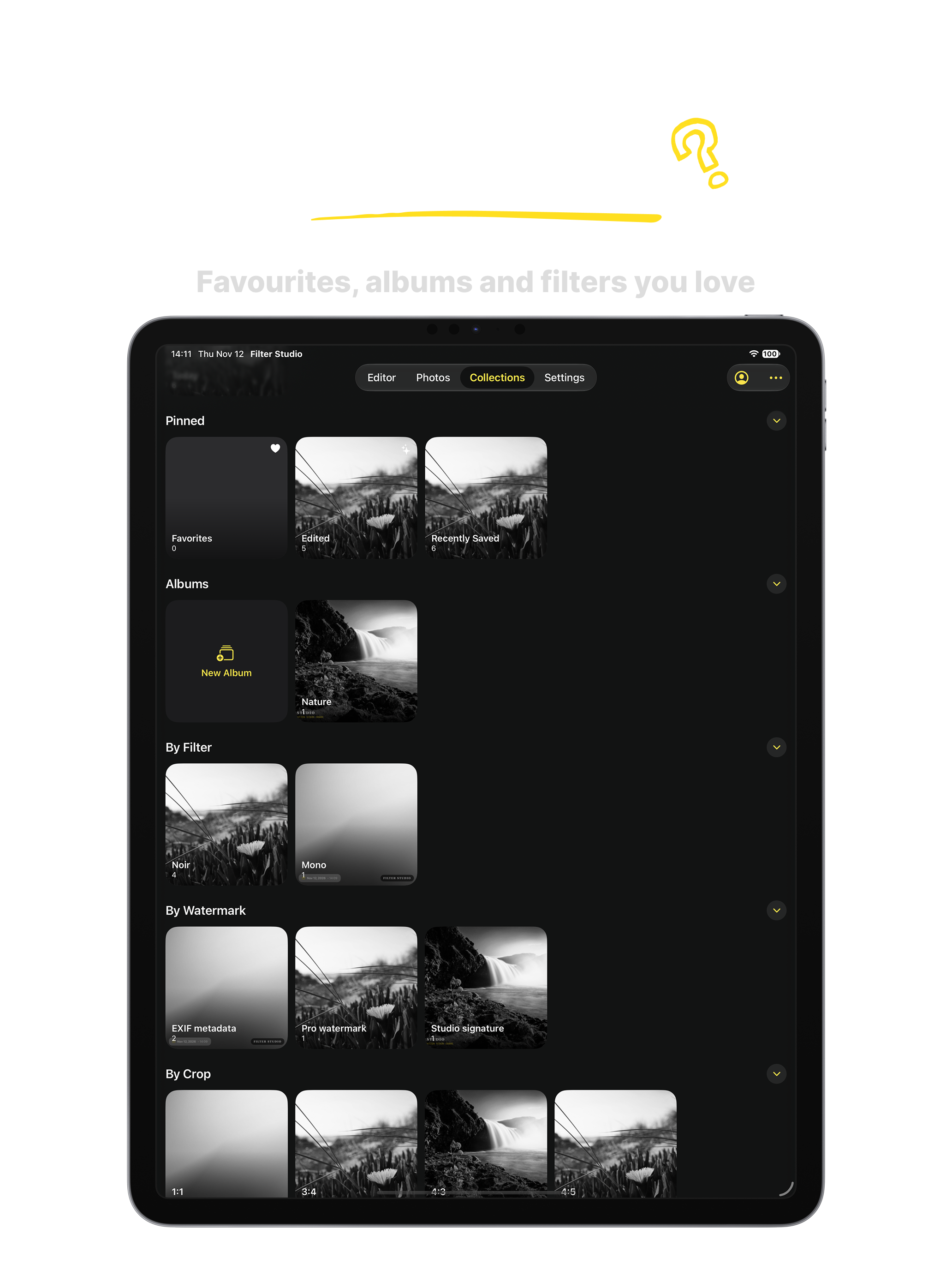
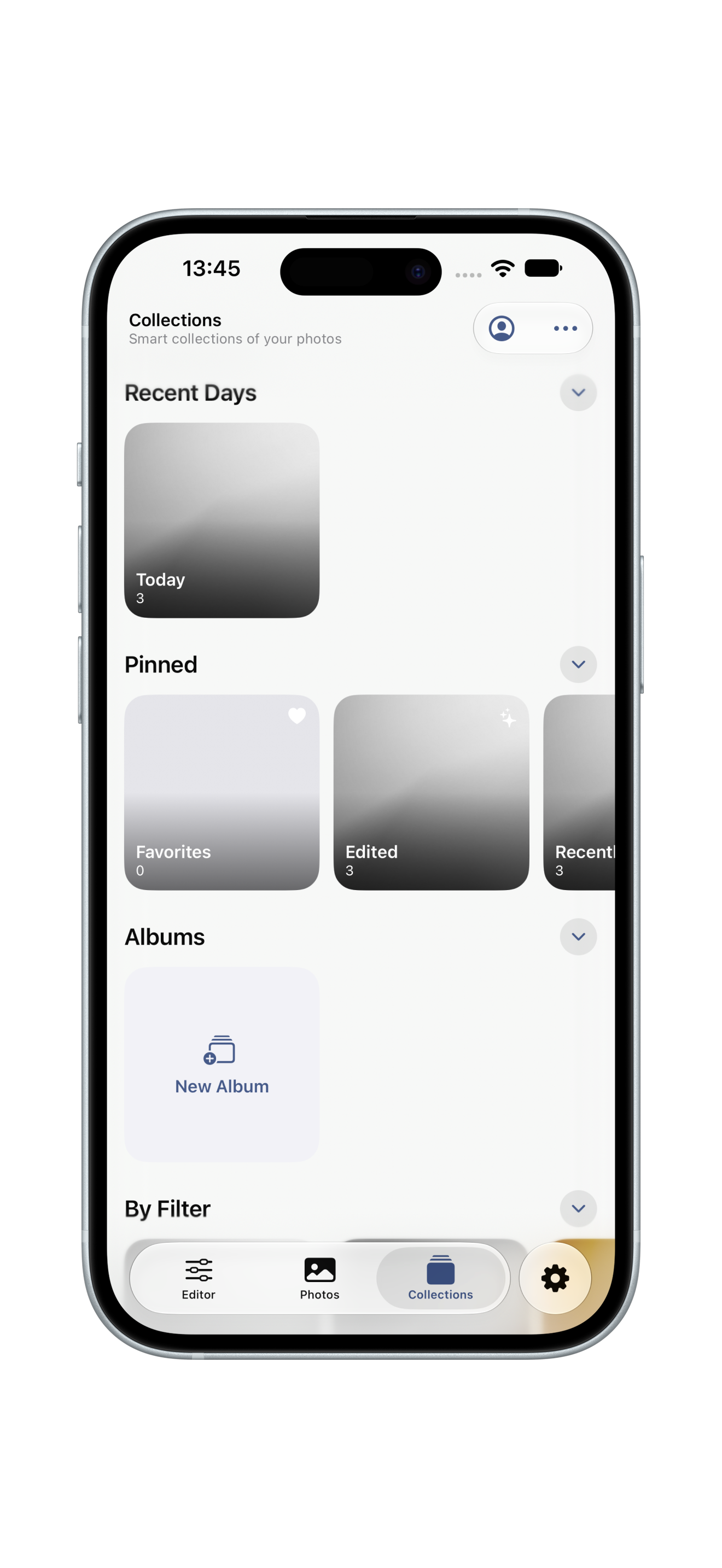
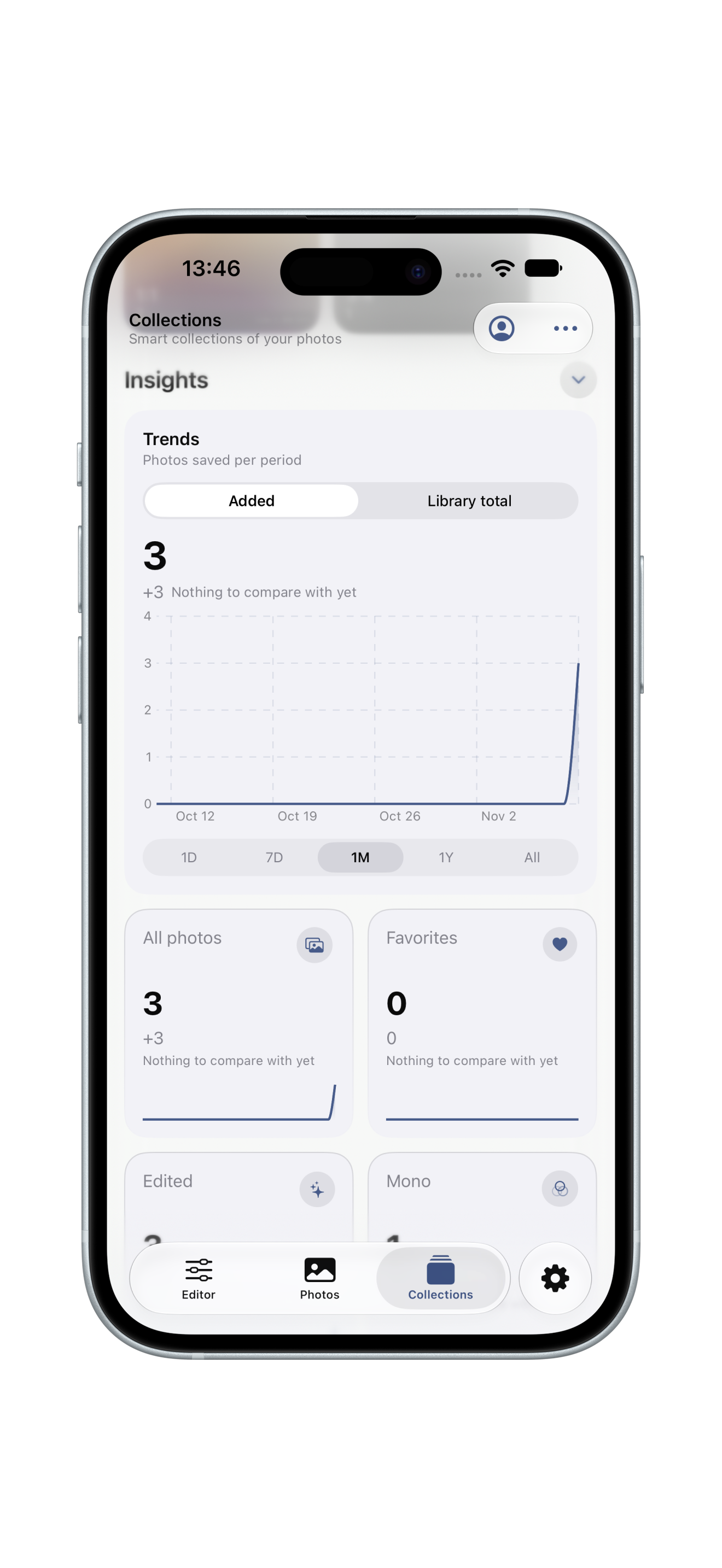
Photos & Collections
Favourites, albums and filters · Filter Studio
Full Photo View & EXIF
Detailed metadata & versions · Filter Studio
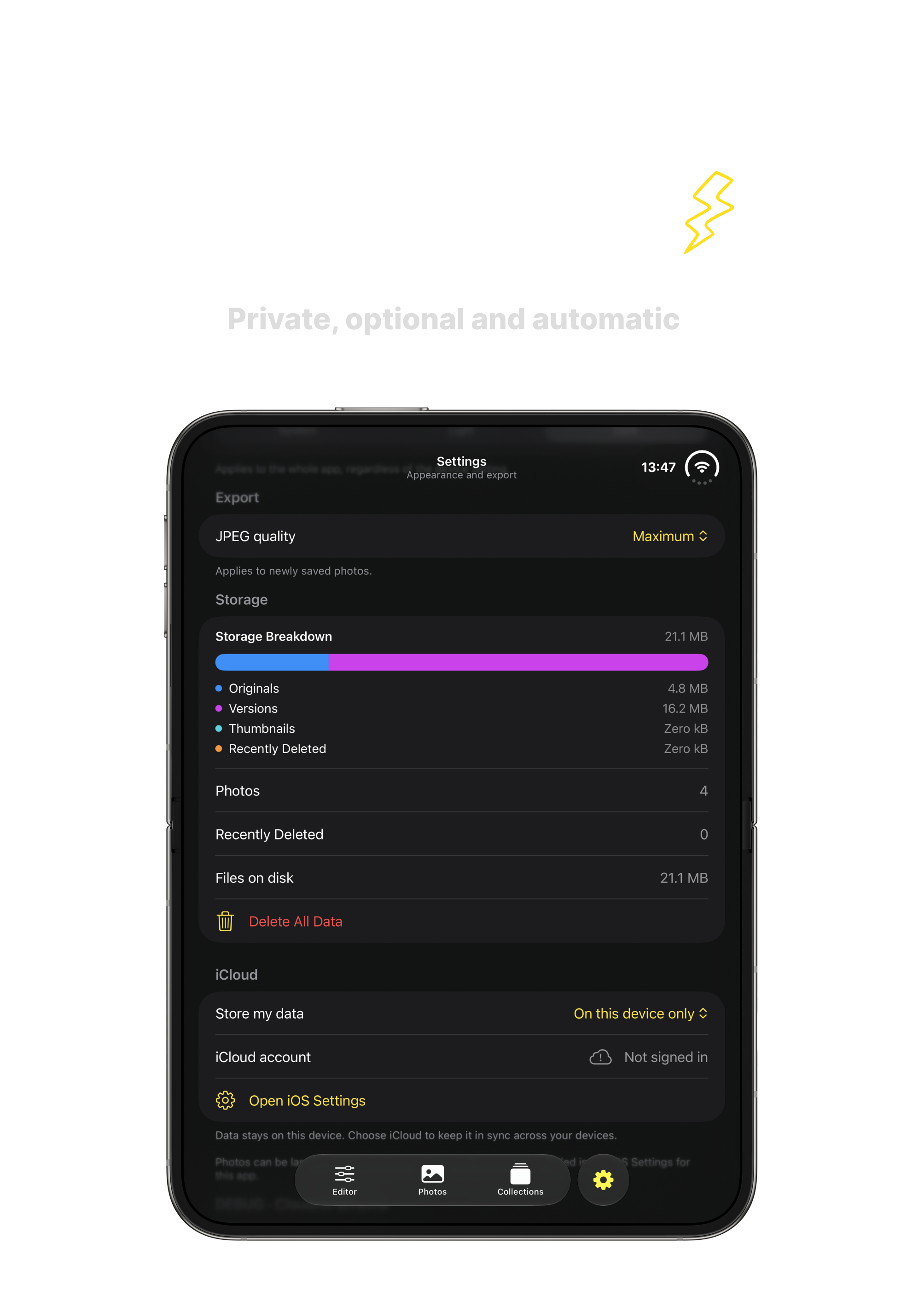
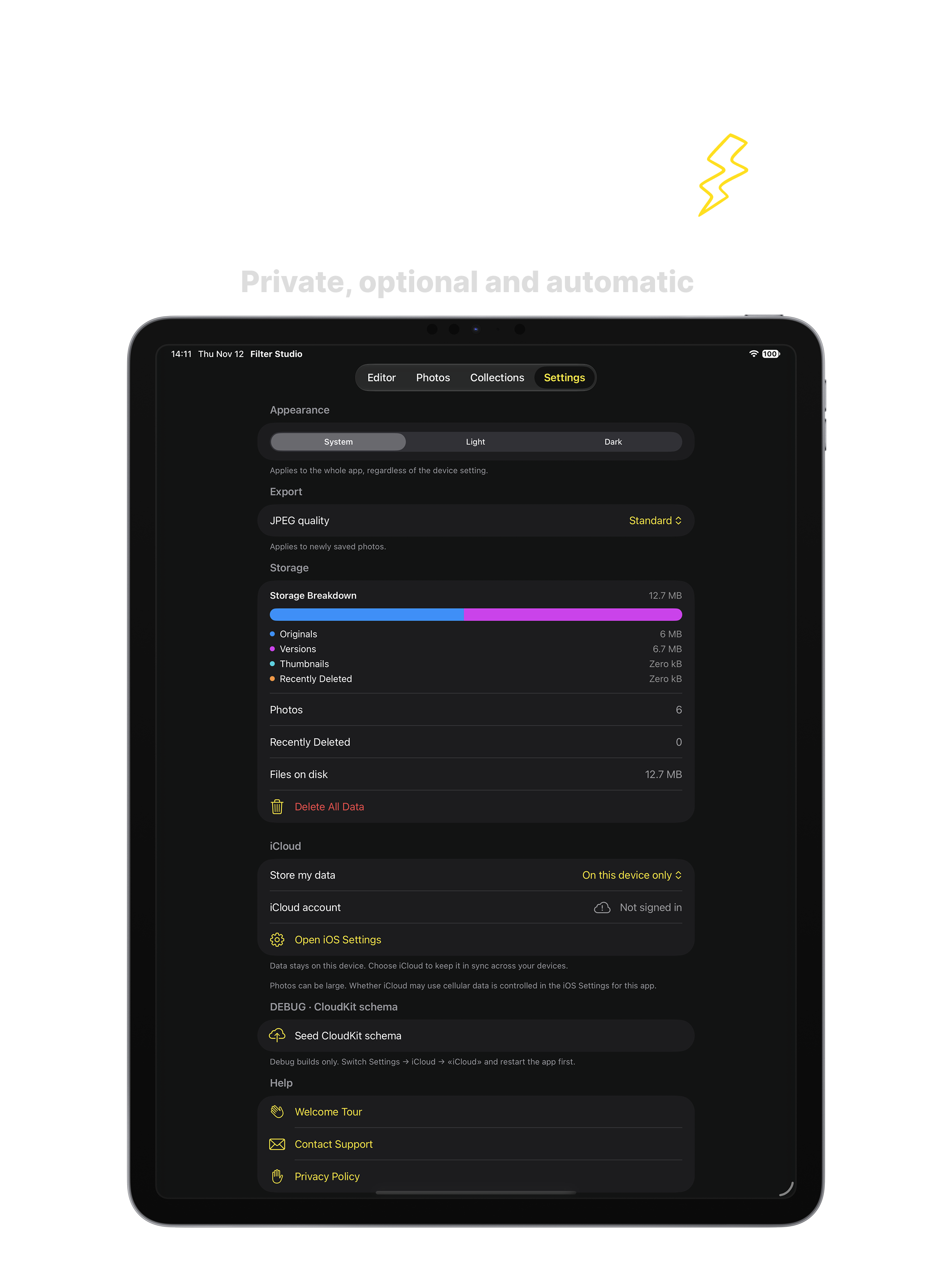
Sync with your iCloud
Storage Breakdown · Private, optional and automatic · Filter Studio
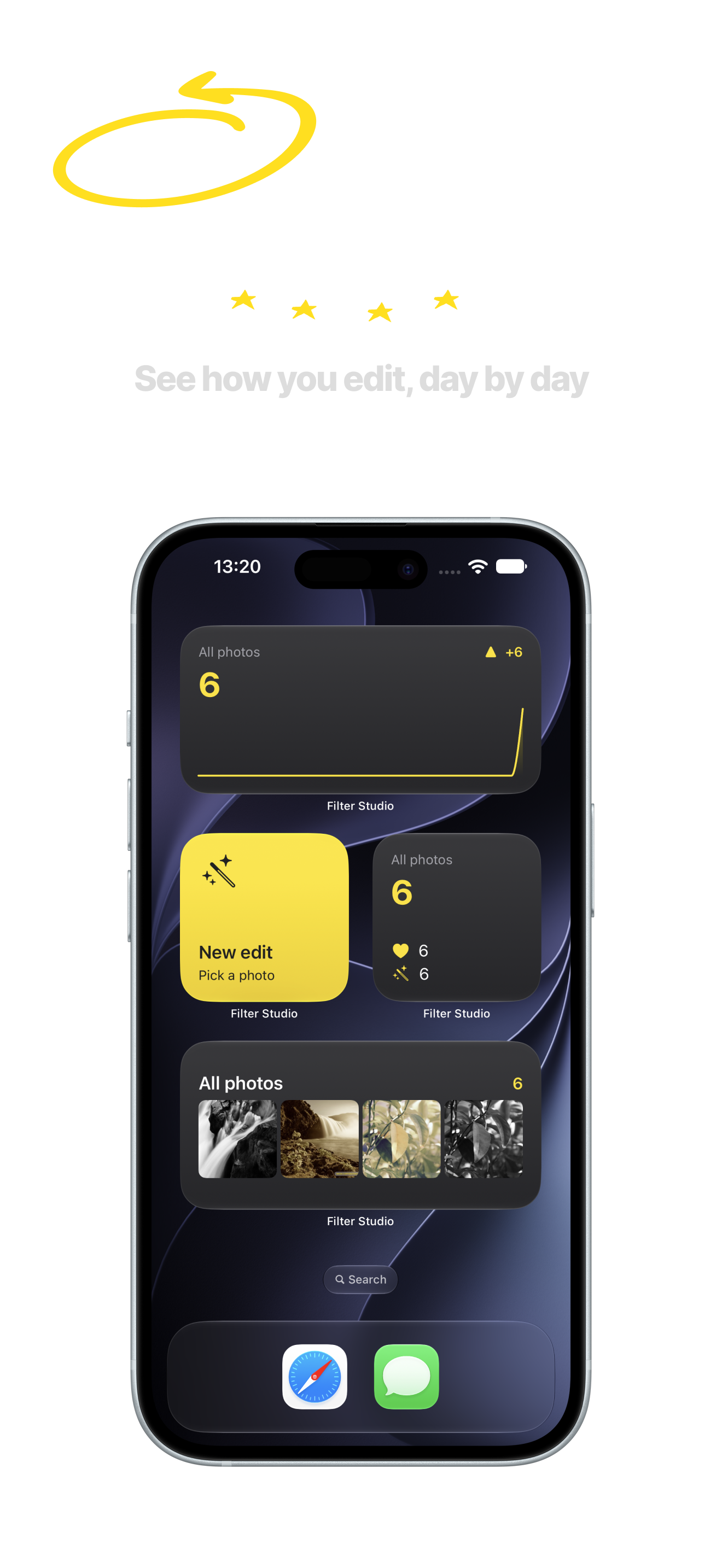
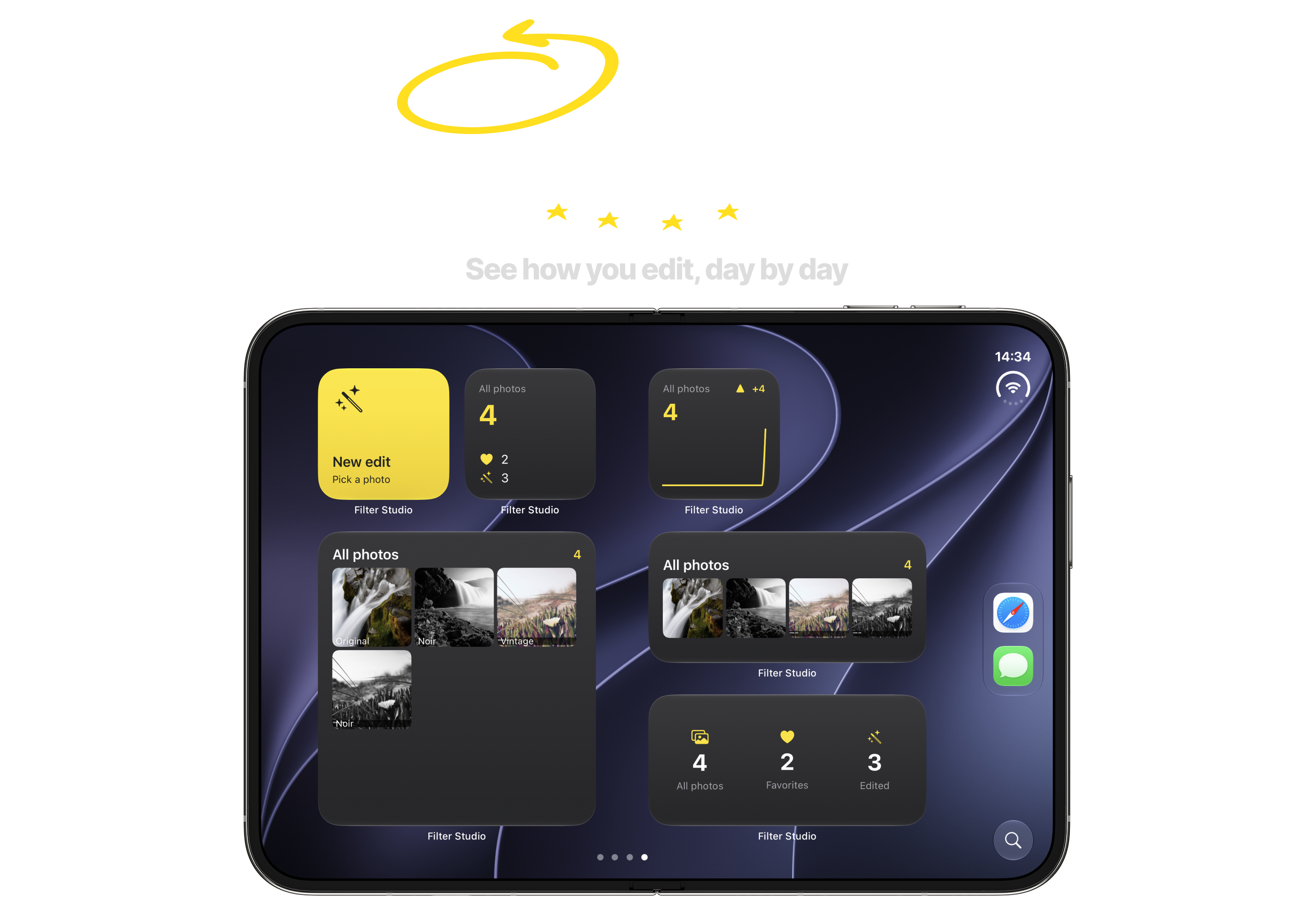
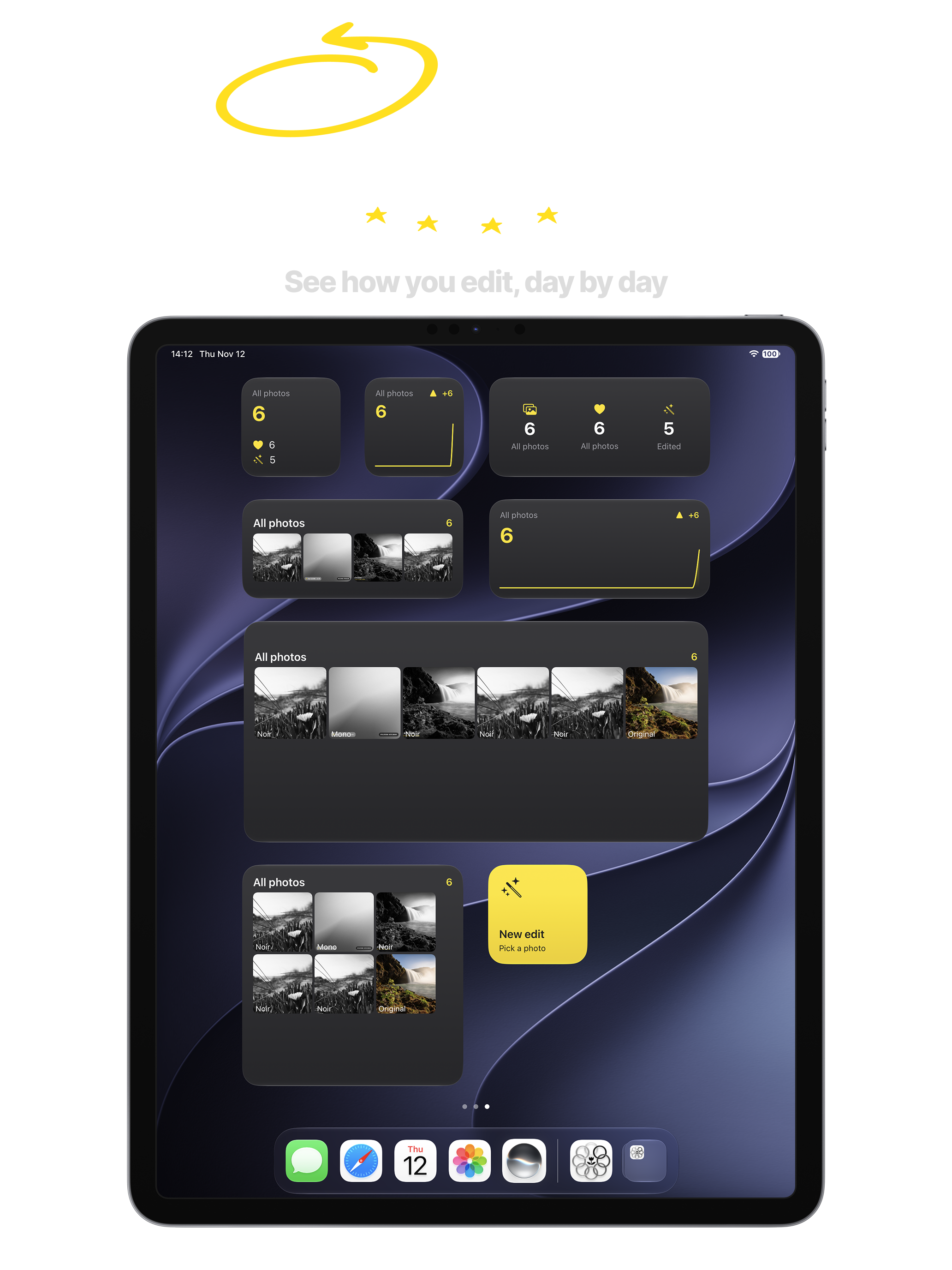
Interactive Widgets
Interactive Widgets
Desktop & Lock Screen widgets · Filter Studio
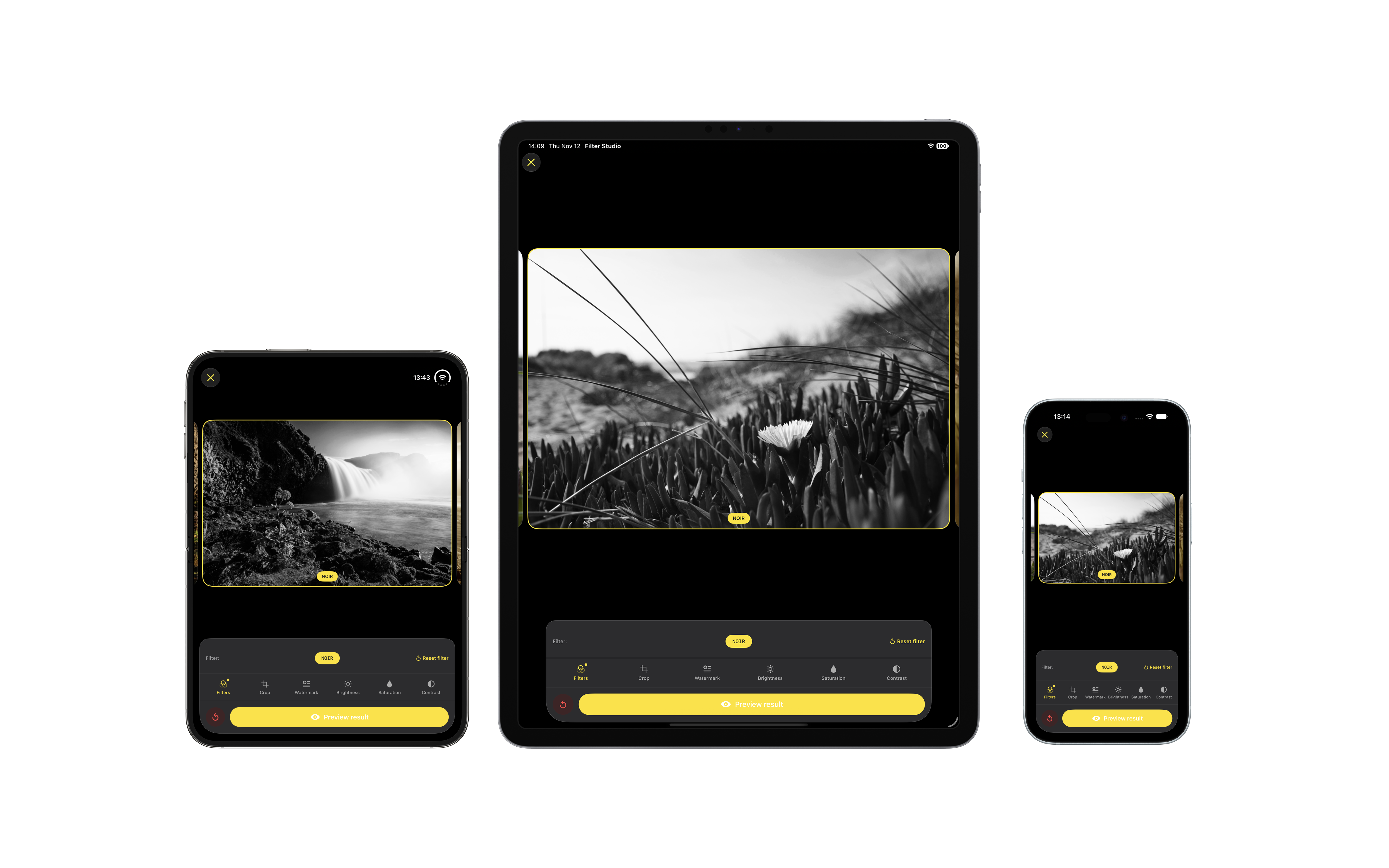
All Devices Ecosystem Cover
All Devices Ecosystem
iPhone, iPad & Duo Screens · Filter Studio
Filters with Live Preview
Duo · Filters · Filter Studio
Crop, Rotate, Mirror
Duo · Crop · Filter Studio
Your Watermark, Your Colour
Duo · Watermark · Filter Studio
Every Edit is a Version
Duo · Versions · Filter Studio
Photo Gallery & Search
Duo · Gallery · Filter Studio
Full Photo View & EXIF
Duo · Detail · Filter Studio
Sync with your iCloud
Duo · Private iCloud Sync · Filter Studio
Interactive Widgets
Interactive Widgets
Duo · Widgets · Filter Studio
Filters with Live Preview
iPhone · Core Image · Filter Studio
Crop, Rotate, Mirror
iPhone · Aspect Ratios · Filter Studio
Your Watermark, Your Colour
iPhone · Watermark · Filter Studio
Every Edit is a Version
iPhone · Versions · Filter Studio
Photo Gallery & Search
iPhone · Gallery · Filter Studio
Full Photo View & EXIF
iPhone · Detail · Filter Studio
Sync with your iCloud
iPhone · Private iCloud Sync · Filter Studio
Interactive Widgets
Interactive Widgets
iPhone · Widgets · Filter Studio
Filters with Live Preview
iPad · Studio Canvas · Filter Studio
Crop, Rotate, Mirror
iPad · Aspect Ratios · Filter Studio
Your Watermark, Your Colour
iPad · Watermark · Filter Studio
Every Edit is a Version
iPad · Versions · Filter Studio
Photo Gallery & Search
iPad · Library · Filter Studio
Full Photo View & EXIF
iPad · Inspector · Filter Studio
Sync with your iCloud
iPad · Private iCloud Sync · Filter Studio
Interactive Widgets
Interactive Widgets
iPad · Widgets · Filter Studio
iPhone 18 Pro Video Demo
Real-time Core Image live preview · Filter Studio
iPad Pro 13 Canvas Demo
Large screen studio workspace · Filter Studio
iPhone Duo Split Demo
Side-by-side editing workflow · Filter Studio
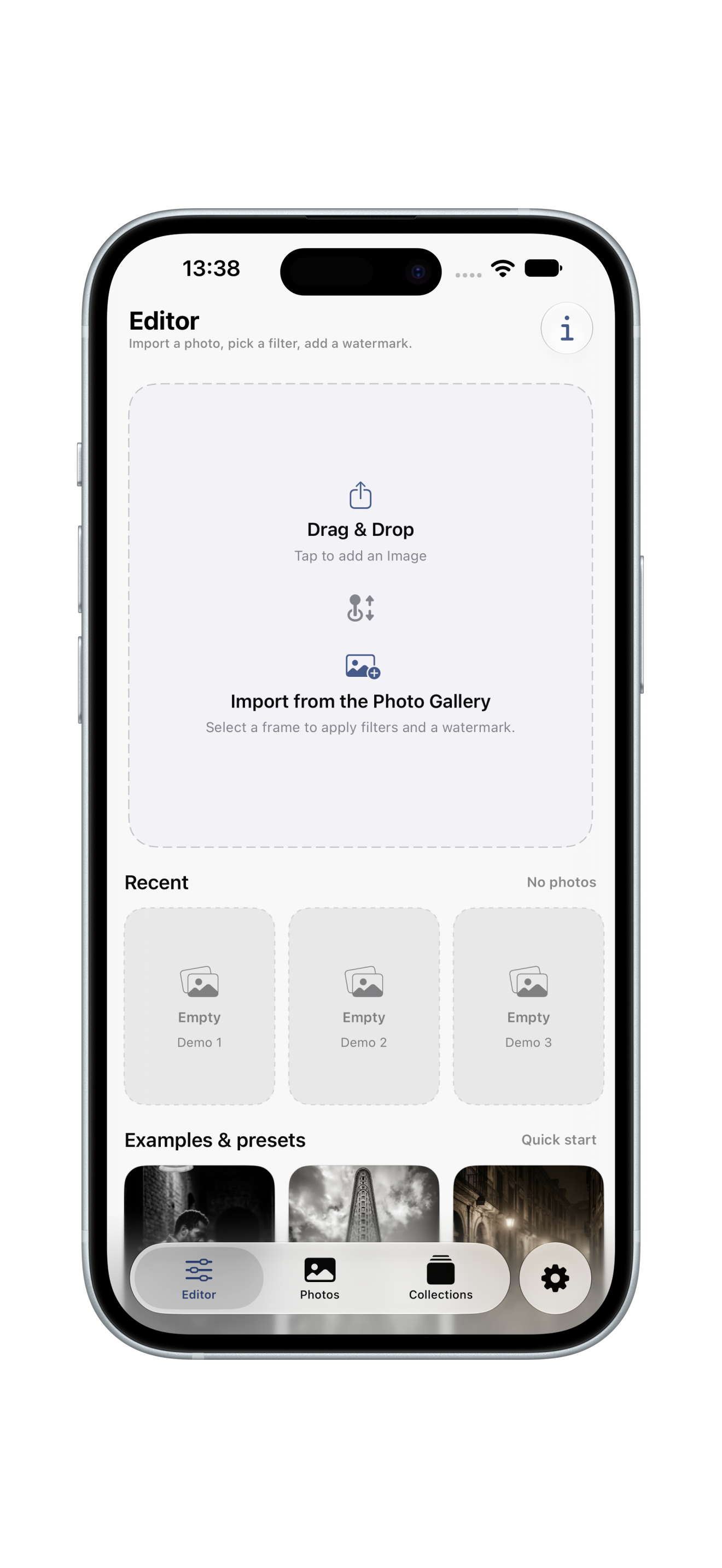
Start in Seconds
Step 01: Start in Seconds
Drop a photo onto the canvas, or try a preset first — no access to your library needed.
Your Photos, Your Choice
Step 02: Your Photos, Your Choice
Pick a frame from your library. FilterStudio only asks for what it needs.
A Guide in One Tap
Step 03: A Guide in One Tap
The ⓘ button shows the steps: import, filter, crop, watermark, save.
Start From Original
Step 04: Start From Original
Your photo is never changed. Every edit becomes a new version.
Swipe Through Filters
Step 05: Swipe Through Filters
Preview each look live, then fine-tune brightness, contrast and saturation.
Crop to Any Ratio
Step 06: Crop to Any Ratio
Square, portrait, wide — pick the frame for where the photo will live.
Add a Watermark
Step 07: Add a Watermark
Eight styles built from the photo EXIF data: camera, timestamp, film frame and more.
Preview the Result
Step 08: Preview the Result
Check the final result with instant toggle, then save a new version.
Saved as a Version
Step 09: Saved as a Version
Each save adds a new frame to your gallery. The original stays untouched.
Your Personal Gallery
Step 10: Your Personal Gallery
All edited frames in one place, sorted with the date they were captured or saved.
Sort & Group
Step 11: Sort & Group
Group frames by day, month or filter type to keep your creative portfolio organized.
Instant Search
Step 12: Instant Search
Find any edited shot by filter name, camera model, date or custom watermark text.
Photo Detail View
Step 13: Photo Detail View
Zoom in to inspect pixel-level filter rendering, sharp grain and color grading.
Edit Details & EXIF
Step 14: Edit Details & EXIF
View full metadata: aperture, shutter speed, ISO, focal length and color profile.
Sync Status & Storage
Step 15: Sync Status & Storage
Check iCloud sync status, on-device cache size and database health at a glance.
Seamless iCloud Sync
Step 16: Seamless iCloud Sync
Edits sync automatically across iPhone and iPad using private Apple CloudKit.
Export & Share
Step 17: Export & Share
Export full-resolution JPEG, HEIF or PNG with watermarks or clean originals.
Studio Settings
Step 18: Studio Settings
Customize default filter strength, export quality, haptic feedback and gestures.
Dark & Light Mode
Step 19: Dark & Light Mode
Designed to look stunning in deep OLED dark theme and crisp daytime light mode.
Ready to Create
Step 20: Ready to Create
You are all set. Pick your first shot and bring your photographic vision to life.
iPhone 18 Pro Video Demo
Complete tour walkthrough · Filter Studio
Filter Studio Ecosystem
iPhone & iPad Native Architecture · Studio-Grade Editing
Direct Support
Support & User Inquiries
Direct developer assistance · hakobghlijyan@gmail.com
Privacy Architecture
100% On-Device Native Privacy
Zero data tracking · Zero telemetry · SwiftData & CloudKit